Web UI
The web interface is available through a direct browser port controlled by WEB_PORT (default 8080 for standalone installs) and through HA Ingress for the Home Assistant addon. In addon mode the ingress port is dynamically assigned by Home Assistant Supervisor (the addon manifest declares ingress_port: 0), so WEB_PORT set inside the addon is ignored — open the UI from the addon’s Home Assistant sidebar entry. The page updates in real time over Server-Sent Events, so most status changes appear without a refresh.
Sign-in flow
Section titled “Sign-in flow”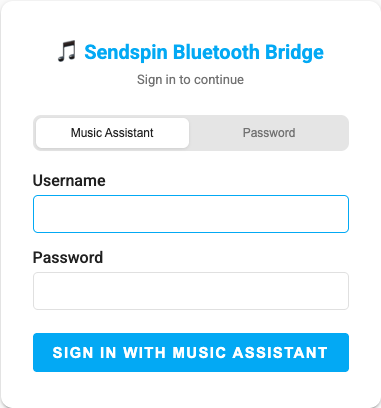
When authentication is enabled, the bridge shows a dedicated sign-in screen before the dashboard.
| Method | When it appears | Notes |
|---|---|---|
| Home Assistant | Always in HA addon mode, or in standalone when the bridge is connected to an HA-backed Music Assistant instance | Uses the HA login_flow, including TOTP / MFA |
| Music Assistant | Standalone installs already connected to MA with a built-in MA token flow | Validates MA credentials against the connected MA server |
| Password | Standalone auth is enabled and a local password hash exists | PBKDF2-SHA256 local password flow |
If Home Assistant requires MFA, the page switches to a 6-digit verification step. In standalone mode, the Security tab controls the session timeout and brute-force policy for these logins. Login forms are CSRF-protected, and standalone sessions use SameSite=Lax plus HttpOnly cookies.
Dashboard overview
Section titled “Dashboard overview”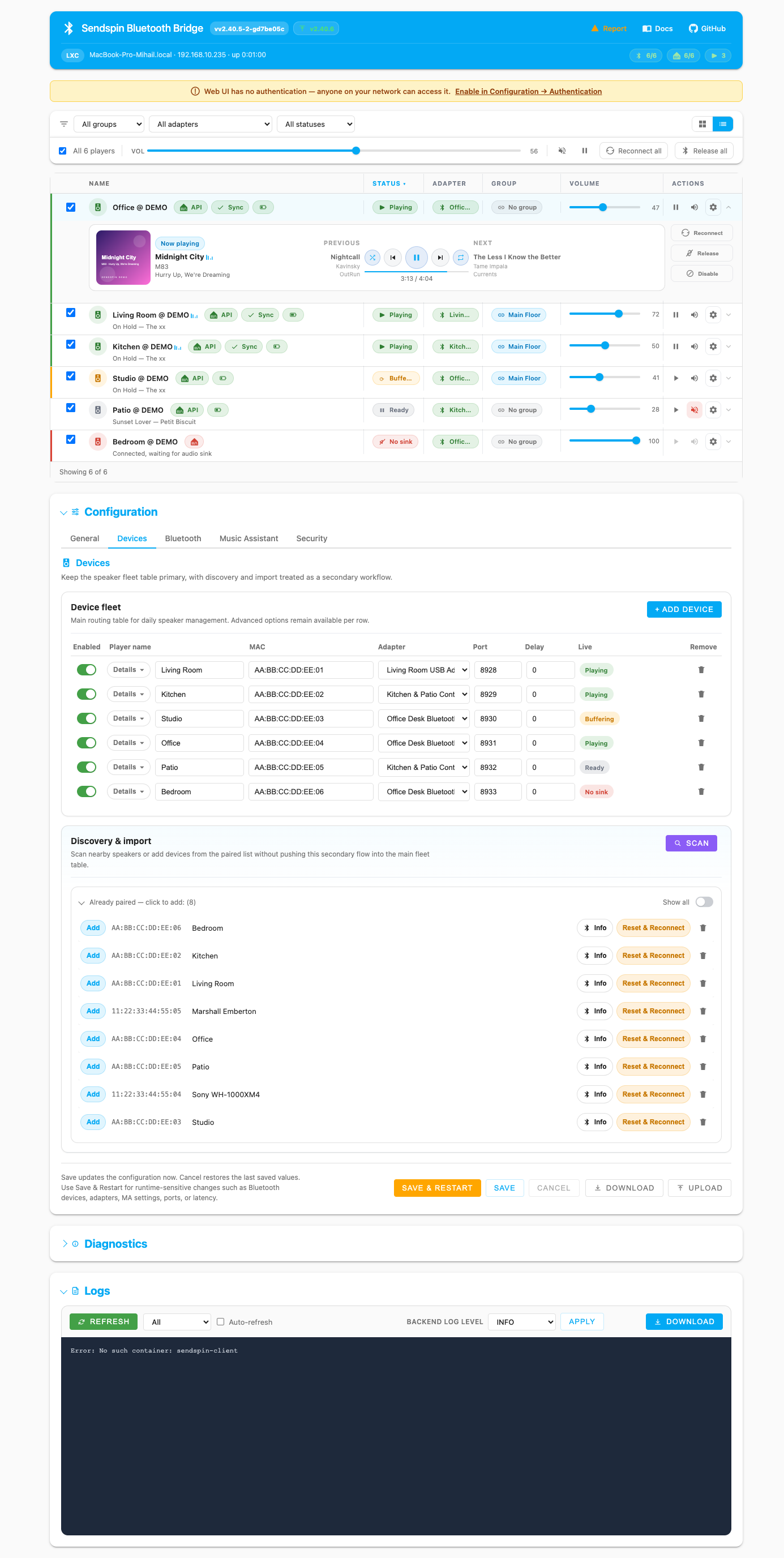
The top of the page combines the live device dashboard with quick filters, guidance, and batch actions:
- Onboarding checklist for first-run setup and empty-state recovery.
- Recovery guidance when the bridge detects grouped issues that need attention.
- Device cards or list rows for every configured speaker.
- Realtime status for Bluetooth, sink routing, playback, Music Assistant connectivity, and sync state.
- Configuration, Diagnostics, and Logs as collapsible sections below the live fleet view.
Header
Section titled “Header”
The header is split into a main action row and a runtime/status row.
Main row
Section titled “Main row”- Bridge title and logo — always shown on the left.
- Version badge — links directly to the matching GitHub release.
- Update badge — shows
check,up to date, or the available target version. - Report / Docs / GitHub — quick links for support and documentation.
- Theme toggle — cycles through Auto → Light → Dark colour schemes; your choice is saved in the browser.
- User area — shows the current user and Sign out when authentication is active.
Runtime row
Section titled “Runtime row”- Runtime chip such as
LXC,systemd, ordemo. - Hostname, IP, and uptime.
- Health pills summarizing Bluetooth devices, Music Assistant state, and active playback.
- Restart progress banner during Save & Restart.
Onboarding and recovery guidance
Section titled “Onboarding and recovery guidance”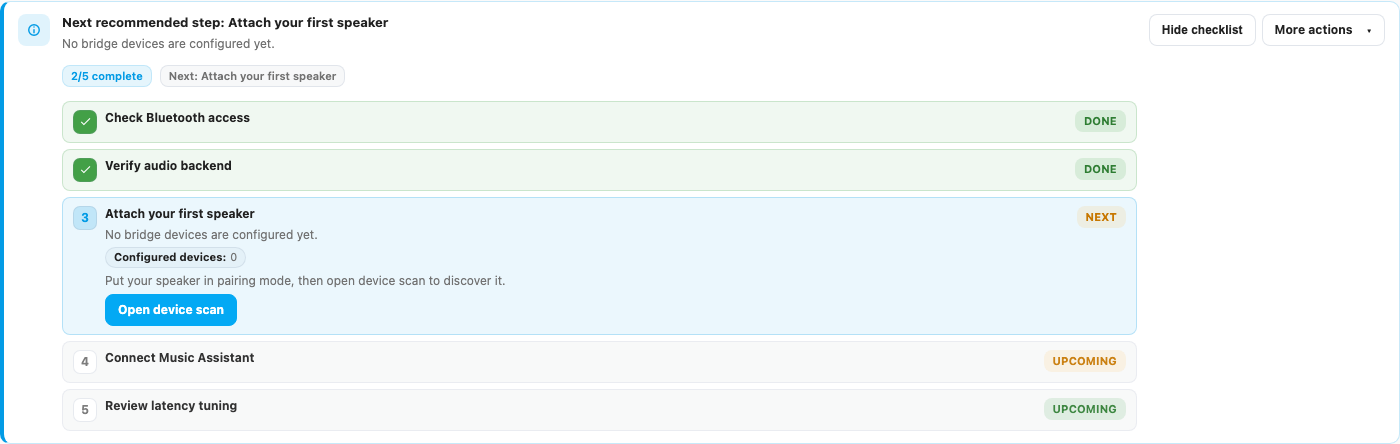
The current UI has two distinct guidance surfaces above the device list:
Setup checklist
Section titled “Setup checklist”- The Setup checklist appears during first-run and empty-state onboarding.
- Show checklist / Hide checklist explicitly expands or collapses it.
- When collapsed, it stays useful instead of disappearing completely: you get a compact summary such as
2/5 complete - Next: Add a speaker. - Don’t show again hides it until you re-enable Show empty-state onboarding guidance in Configuration → General.
Recovery guidance
Section titled “Recovery guidance”- The Recovery guidance banner appears when the bridge detects issues that need operator action.
- Actions can jump straight to the right place, such as Music Assistant settings, Diagnostics, or the affected device action.
- Use Configuration → General → Show recovery banners if you want to hide or restore those notices.
Together, these cards give you both first-run help and day-two operational guidance without sending you hunting through logs first.

Filters, batch actions, and view modes
Section titled “Filters, batch actions, and view modes”
The toolbar above the fleet view includes:
- Group filter — show one Music Assistant sync group or all groups.
- Adapter filter — narrow the view to a specific Bluetooth adapter.
- Status filter — filter by playing, idle, standby, reconnecting, released, or error states.
- Selection controls — select all visible devices, then apply group volume, mute, or pause.
- Bulk actions dropdown — runs against every device in the fleet, regardless of selection: Reconnect all, Power save all (suspend the PulseAudio sink), Standby all (disconnect Bluetooth), and Release all (hand the speakers back to the host without removing them from the saved fleet).
- Grid/List toggle — switch between card view and table view.
View modes
Section titled “View modes”The current UI defaults to list view. You can still switch to grid view when you want larger per-device cards, and your manual choice is remembered in browser storage.
In list view, one row can be expanded at a time for transport controls, routing details, and device actions. The list auto-expands the most relevant row on load, usually the first active device.
Devices are automatically sorted by activity: playing speakers appear first, then connected-idle, then disconnected or standby. Within each tier, sync-group members stay together.
Device cards and rows
Section titled “Device cards and rows”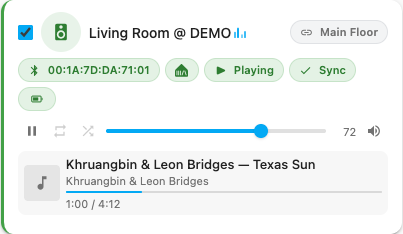
Each device exposes the same core information in both grid and list layouts:
-
Player name and playback animation.
-
Status badge — current device state:
Playing,Connecting,Stale stream,No sink,Standby,Disconnected,Stopping,Waking,Sink muted,Applying, orBuffering. -
Track, artist, progress, and album art when available. The progress bar is driven by the native sendspin daemon timeline (the older Music Assistant fallback path was removed in v2.64). Click the artwork to enlarge it.
-
Volume and mute controls.
-
Sync badge — shows
Sync(green) orRe-anchoring(amber, pulsing) with the running drift in milliseconds and a re-anchor counter. -
Adapter chip — Bluetooth icon plus the adapter’s friendly name. The chip is colour-coded by health (success / warning / error / neutral) and clicking it jumps to the adapter row in Configuration → Bluetooth.
-
Music Assistant chip — MA icon, with an
APItag when the bridge is talking to the MA REST/WebSocket API. -
Battery chip — icon plus percentage, where available. Tiers are green (>25 %), amber (16–25 %), and red (≤15 %); the value is read from
org.bluez.Battery1. -
RSSI chip — four-bar signal indicator and live
Δ dBreadout, refreshed every 5 s. The value is the offset from the BR/EDR Golden Receive Power Range, so0is ideal and increasingly negative values are a degraded link. The chip greys out when no fresh sample arrived in the last 30 s. RSSI is on by default and can be turned off in Configuration → Bluetooth → Show live signal-strength badges.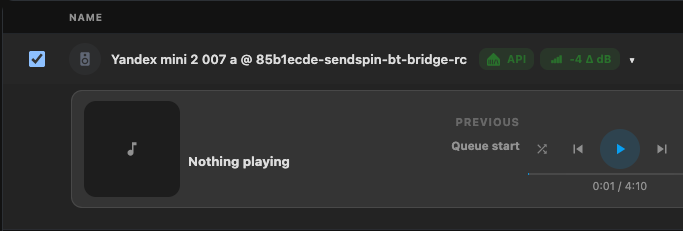
-
Group chip — Music Assistant sync-group name. Unnamed groups fall back to a short
#suffix(last few characters of the group UUID) so multiple unnamed groups still read distinctly. A+Ndecoration appears when the group has external (non-bridge) members. Click the chip to open the group’s settings page in the MA web UI. -
Room chip — appears when the device has a
room_name/room_idset; styled in blue when the value was auto-resolved from a Home Assistant area. -
Transfer-readiness chip — appears during a room handoff to indicate whether the next speaker is primed.
-
Released / Auto-released badge — overlay above the speaker icon when the device is currently outside the bridge’s control.
-
Standby badge —
💤 Standby (Xm)with elapsed minutes, when the device is parked.
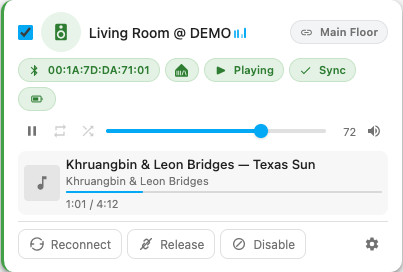
Hovering a card or expanding a row reveals more context and quick actions, including:
- Reconnect and Re-pair.
- Release / Reclaim for temporarily handing the speaker back to a phone or PC without deleting it from the bridge.
- Claim — appears for AVRCP-multipoint speakers that are currently controlled by another source (a phone, for example). Pressing it tells the bridge to take over the AVRCP role.
- Standby / Wake for power-saving disconnect; the speaker stays in the fleet but Bluetooth is parked until you wake it. Wake is shown only while the device is in standby.
- Disable — danger-styled action that takes the device out of the active fleet without removing the saved configuration.
- BT Info modal — copyable diagnostics. The modal renders the full
bluetoothctl info <MAC>output including advertised service UUIDs. - Settings gear that jumps straight into the matching row in Configuration → Devices.
When a control is disabled, the card shows up to two blocked-action hints (with Why disabled? remediation links), so you immediately see why a button cannot be pressed in the current state.
A few action pairs look similar but mean different things:
- Release / Reclaim is immediate and only toggles Bluetooth management for the live bridge.
- Disable / Enable lives in Configuration → Devices and controls whether the device should be part of the saved fleet.
- Re-pair or paired-device reset tools are for broken host pairing/trust state, not day-to-day handoff.
Group badges are interactive too: clicking a Music Assistant group badge opens the matching group settings page in the MA web UI.
Speaker hardware controls (MPRIS)
Section titled “Speaker hardware controls (MPRIS)”The bridge registers a per-device MPRIS player on the system D-Bus and hands it to BlueZ via Media1.RegisterPlayer. That gives you a two-way connection between the speaker’s physical buttons and Music Assistant:
- Speaker → bridge → MA — pressing Play / Pause / Next / Previous or rotating the volume knob on the speaker is forwarded as an AVRCP keypress, mapped to the corresponding Music Assistant queue command for that device’s sync group.
- MA → bridge → speaker — when MA reports a track change, pause, or volume update, the bridge pushes the new playback state, title/artist metadata, and volume back through MPRIS so the speaker’s display and indicator LEDs reflect what is actually playing.
When a single Bluetooth adapter has more than one speaker connected, the bridge uses an HCI source monitor to figure out which speaker generated an AVRCP keypress, so a Next press on speaker A doesn’t skip the track playing on speaker B. Multi-speaker correlation needs the CAP_NET_RAW capability inside the container; without it the bridge falls back to routing every keypress to the most recently active speaker on that adapter.
There is no UI toggle for MPRIS itself — it is always on for connected speakers that advertise AVRCP target support.
Configuration panel
Section titled “Configuration panel”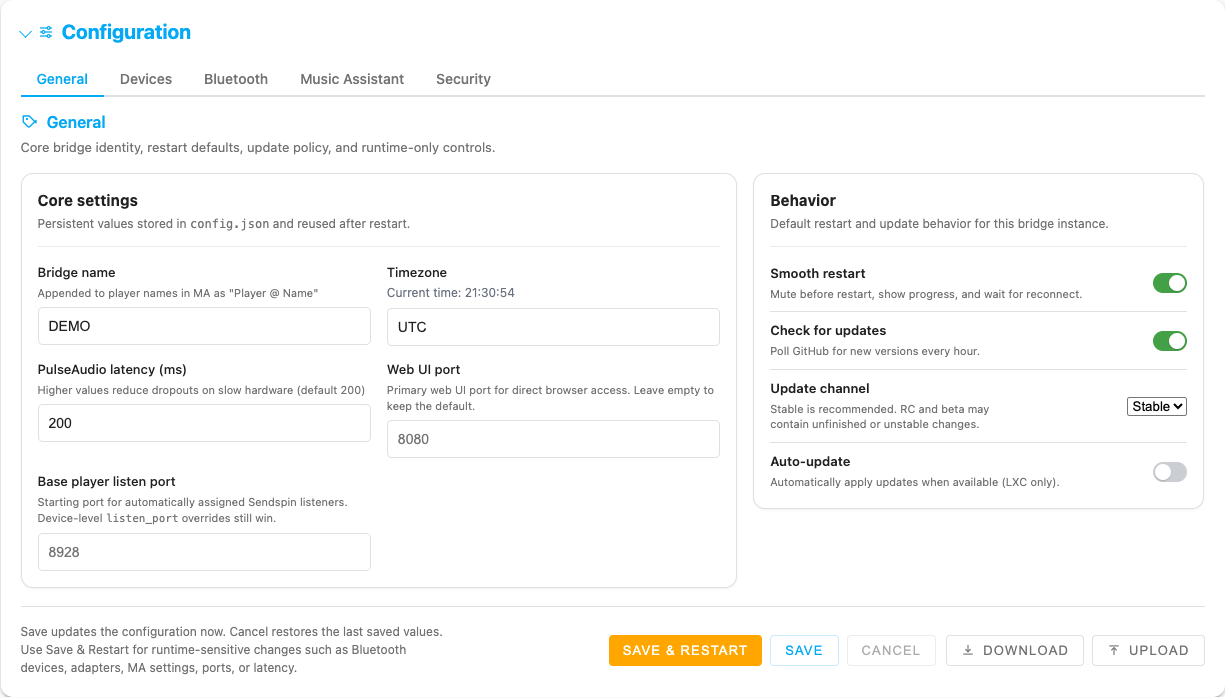
The redesigned Configuration section is organized into six tabs:
| Tab | Purpose |
|---|---|
| General | Bridge identity, timezone, direct web port, base listener port, restart behavior, update policy, guidance visibility, and advanced compatibility-tools toggle |
| Audio | PulseAudio latency, codec preference, and PA rescue-streams control |
| Devices | Speaker fleet table and per-device saved settings |
| Bluetooth | Adapter inventory, paired-device management, scan modal, and reconnect policy |
| Music Assistant | Connection status, token flows, reconfigure flow, and sync/routing toggles |
| Security | Local auth, session timeout, brute-force settings (standalone only) |
The footer actions behave differently on purpose:
- Save writes the config without forcing a restart.
- Save & Restart applies restart-sensitive changes immediately and shows progress in the header.
- Cancel restores the last saved values in the form.
- Download exports a share-safe
config.jsonwith sensitive values removed. - Upload imports a config file while preserving the current password hash, secret key, and stored MA token on the server.
Unsaved edits enable Cancel, mark the configuration area as dirty, and trigger a browser warning if you try to leave the page mid-edit.
General tab
Section titled “General tab”Beyond the core identity and policy fields listed in the table, the General tab includes an Advanced compatibility tools toggle. This browser-local preference reveals narrowly targeted recovery and pairing workarounds; it is not written to the config file. Stable controls such as adapter-area naming, room labels, RSSI, pairing peer-quiesce, and microphone calibration remain visible without it.
Compatibility rows show their restart requirement and runtime support. An unavailable PulseAudio or adapter-recovery control is disabled with the detected reason instead of accepting a setting that cannot work on the current host.
Audio tab
Section titled “Audio tab”The Audio tab groups latency and codec settings that affect all speakers:
- PulseAudio latency (default 600 ms, range 50–2000 ms) — tunes the buffer between the bridge and the PulseAudio/PipeWire backend.
- Prefer SBC codec — selects the lower-CPU Bluetooth audio codec; useful on Raspberry Pi and similar boards.
- Disable PA rescue-streams — prevents PulseAudio’s
module-rescue-streamsfrom moving audio to the wrong sink after a Bluetooth reconnect.
Devices tab
Section titled “Devices tab”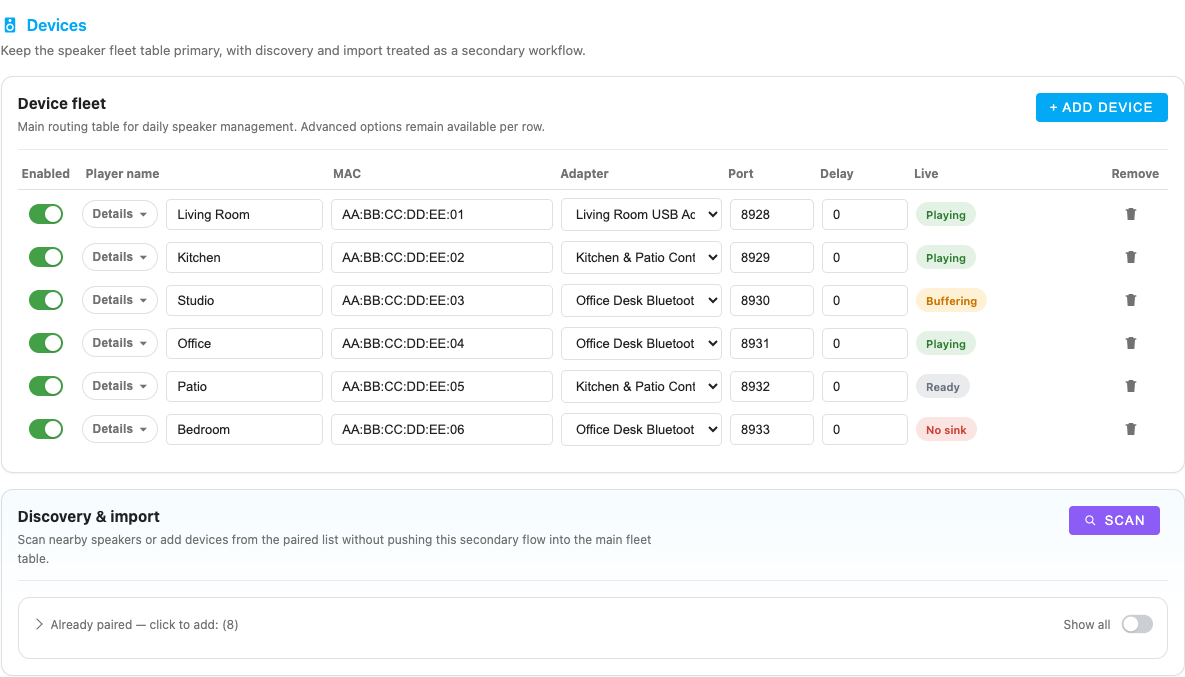
The Devices tab is now the saved fleet table only:
- Enabled, player name, MAC, adapter, port, a compact live delay panel, live badge, and remove all live here.
- Per-speaker details include preferred audio format,
listen_host,keepalive_interval, and optional room name / room ID context. Room values may come from a Home Assistant area or be entered as local labels; they do not imply Music Assistant room handoff. - Dashboard device gears scroll here, highlight the matching row, and focus the relevant controls.
If listen_port is left blank, the runtime uses BASE_LISTEN_PORT + device index. Positive keepalive_interval values enable silence keepalive, values below 30 seconds are raised to 30, and the old keepalive_silence compatibility flag is no longer exposed as a separate web-UI toggle.
Bluetooth tab
Section titled “Bluetooth tab”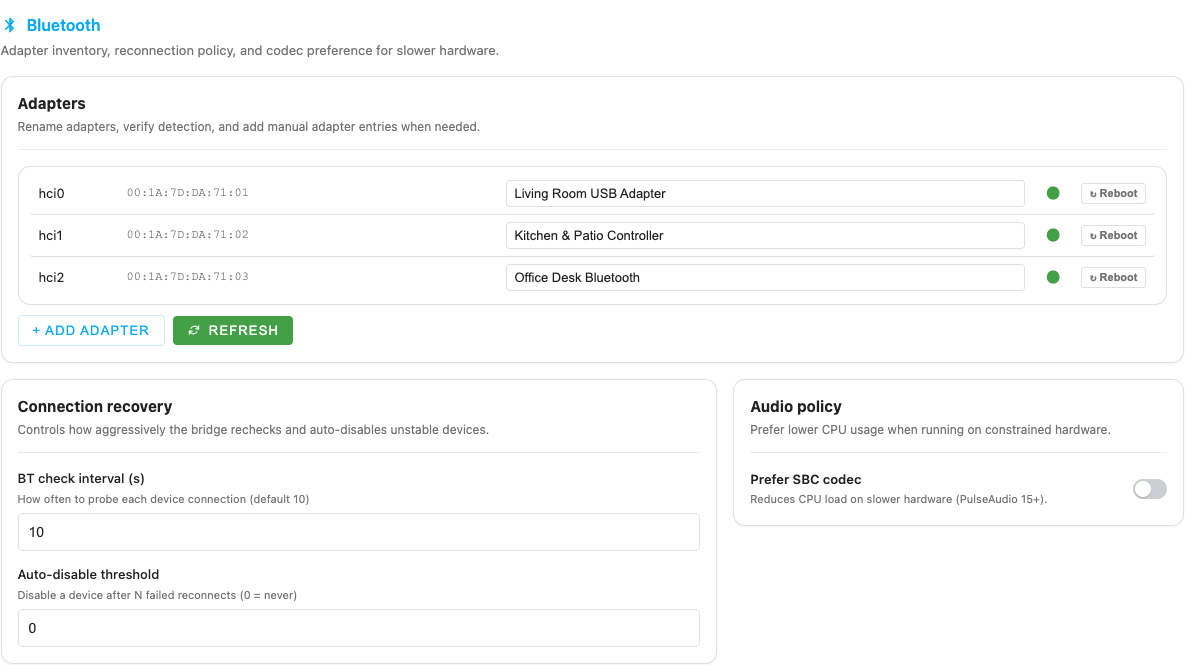
The Bluetooth tab now owns the bridge-side Bluetooth tools:
- Adapters card for rename, refresh, reboot, and manual adapter rows. The ↻ Reboot button power-cycles a single adapter (off → 3 s pause → on) without restarting the bridge.
- Paired devices card for inventory, import, and repair/reset actions. Each row has a ℹ️ Info button that opens the BT device info modal with copyable diagnostics.
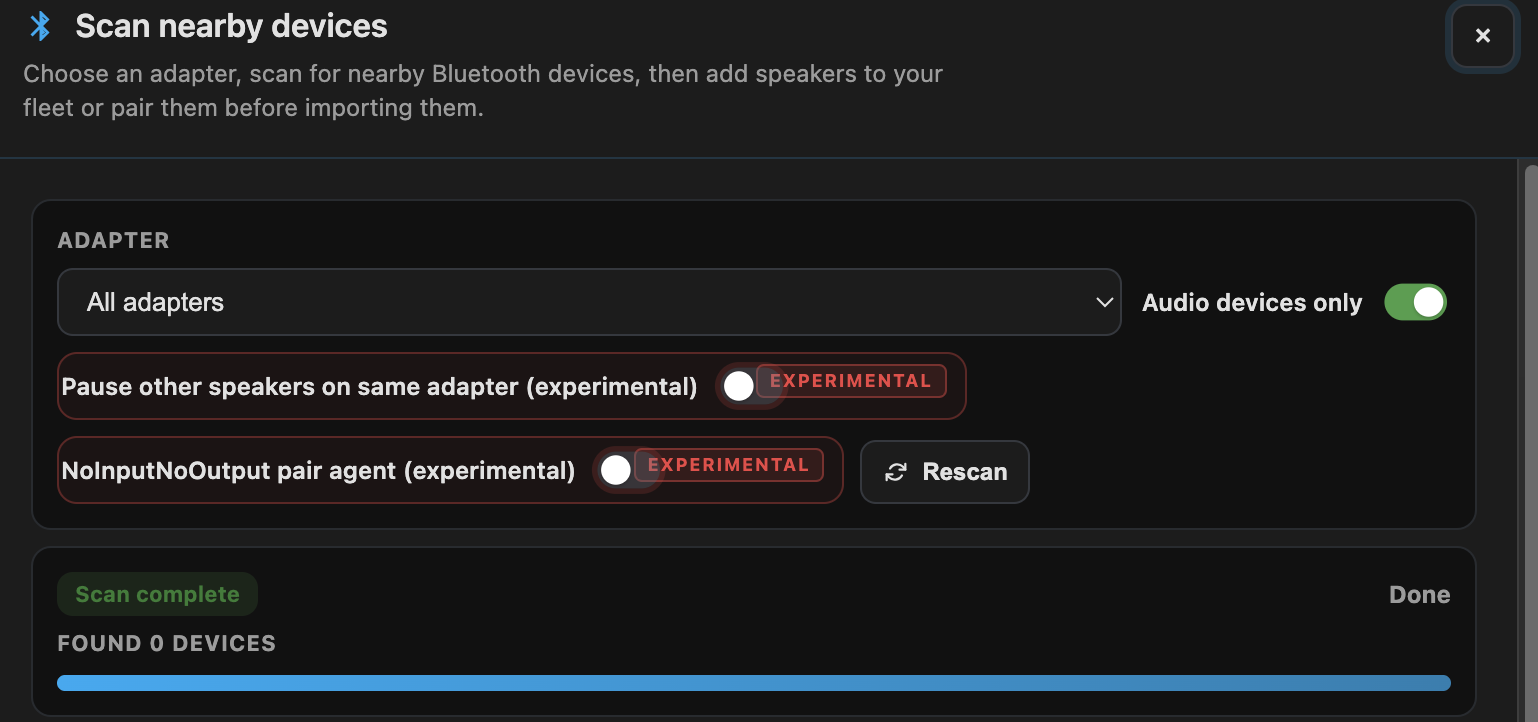
- Scan nearby opens a dedicated Bluetooth scan modal from this tab.
- Show live signal-strength badges (
RSSI_BADGE) — controls whether the device cards display the live RSSI chip described above. Default on. - Connection recovery settings cover BT check interval, auto-disable threshold, and the rapid-reconnect churn-isolation thresholds (
BT_CHURN_THRESHOLD,BT_CHURN_WINDOW) used to auto-disable a device that is stuck in a reconnect loop. - Advanced recovery workarounds card (visible only with Advanced compatibility tools turned on) — see the table further down.
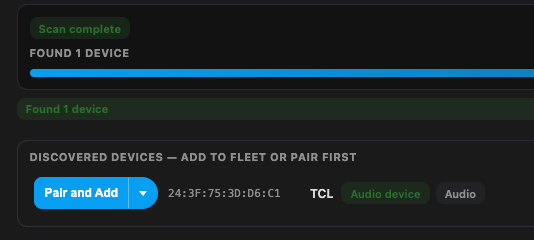
The scan modal improves first-run discovery and troubleshooting:
- choose the specific adapter that should perform this scan (the first detected adapter is preselected);
- keep Audio devices only on for normal use, or turn it off when debugging non-audio candidates;
- watch a live countdown/progress bar while the scan runs;
- use Pair and Add (primary action) for the normal case, or the Add to fleet dropdown alternative when the speaker is already paired with the host;
- use Rescan after the cooldown without leaving the modal.
The Already paired devices list is the faster option when the host already knows the speaker and you just want to import or repair it.
Each scan result row carries its own context chips: an Audio device / Other tag, the adapter that saw the device, an RSSI chip, and a ⚠ Another bridge warning when the device looks like it is already managed by another bridge instance.
Advanced Bluetooth compatibility tools
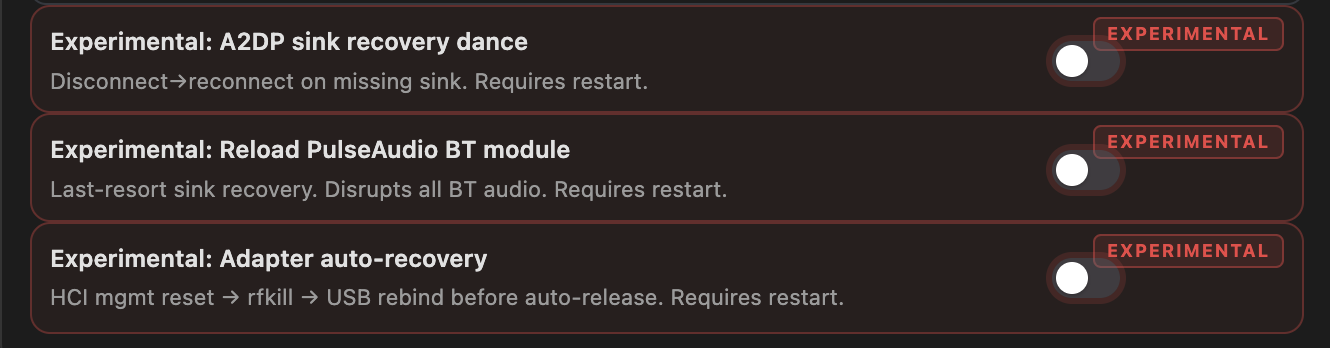
Section titled “Advanced Bluetooth compatibility tools”Visible only with Advanced compatibility tools turned on:
| Toggle | What it does |
|---|---|
EXPERIMENTAL_A2DP_SINK_RECOVERY_DANCE | Adds a profile-disconnect / reconnect dance after BlueZ misses the A2DP sink during connect. Workaround for the dual-role regression in BlueZ 5.86 (bluez/bluez#1922). |
EXPERIMENTAL_PA_MODULE_RELOAD | Reloads PulseAudio’s module-bluez5-discover if a Bluetooth card never appears. It is unavailable on PipeWire and disrupts all classic-PulseAudio Bluetooth devices. |
EXPERIMENTAL_ADAPTER_AUTO_RECOVERY | At the reconnect-failure threshold, validates rfkill state, power-cycles the controller through MGMT/HCI, and optionally resets a USB adapter if the power-cycle fails. Requires Linux NET_ADMIN + NET_RAW; USB reset additionally needs writable USB-device access. The UI reports the detected level. |
The scan modal also has pairing-attempt controls:
| Toggle | What it does |
|---|---|
| Temporarily disconnect other speakers (peer-quiesce) | Stable pairing aid: disconnects peers on the selected adapter, then lets their normal reconnect paths restore them after the attempt. |
| NoInputNoOutput pair agent | One-shot Just-Works mode for speakers that never send SSP confirmation. It removes authenticated numeric comparison, is hidden behind the compatibility toggle, resets after the request, and the BlueZ agent rejects requests for every MAC except the selected target. |
| Authorize HFP/HSP for this pair | One-shot service authorization for multi-profile devices that otherwise refuse pairing. Playback remains A2DP-only; this does not install an HFP audio backend. It resets after the request. |
Music Assistant tab
Section titled “Music Assistant tab”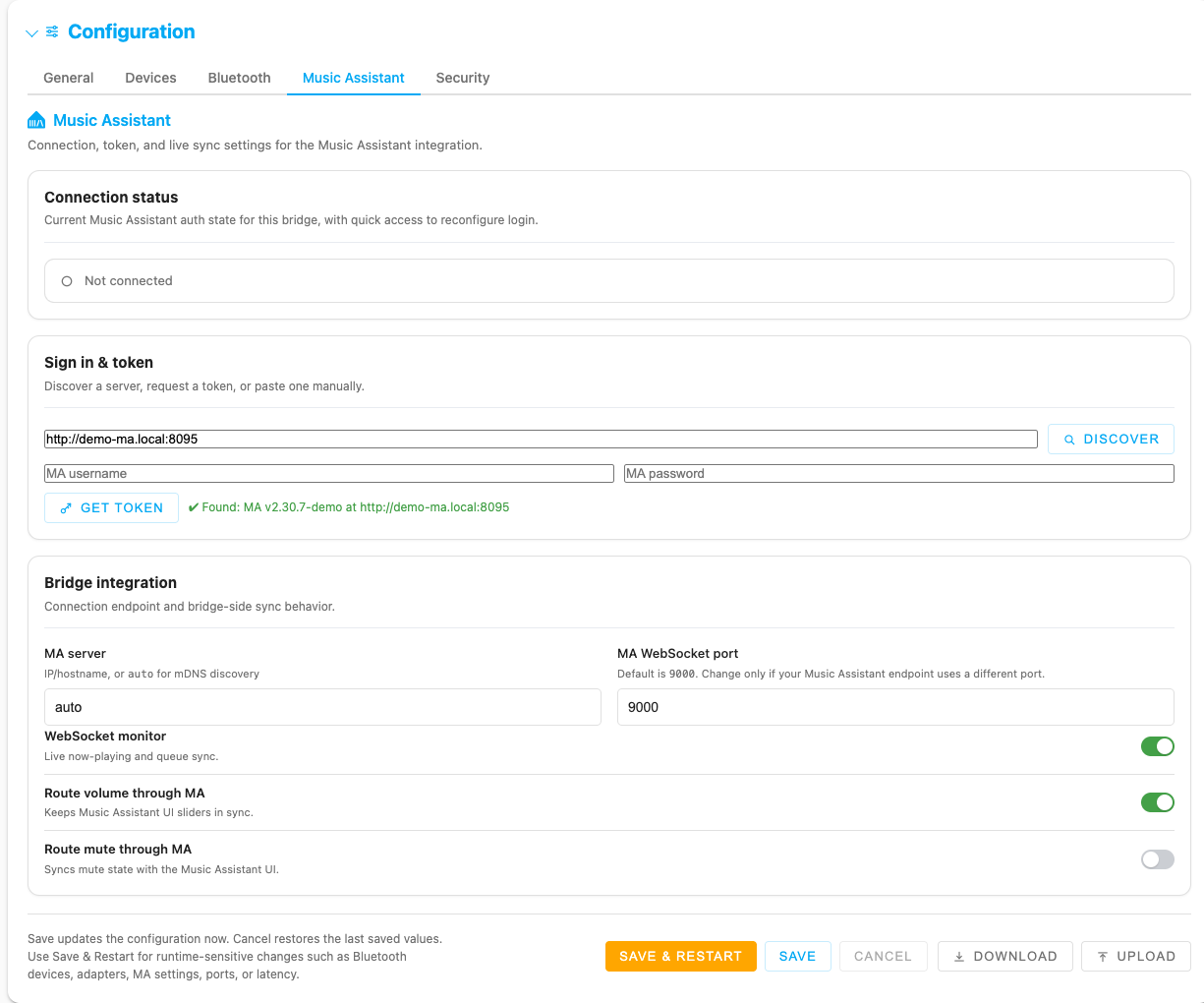
The Music Assistant tab combines connection state with authentication helpers:
- Connection status card shows whether the bridge is connected and who authenticated it.
- Reconfigure appears on that status card once you are connected, so you can reopen the token tools without clearing the existing config first.
- The Sign in & token card stays hidden when the connection is healthy, then reappears when you click Reconfigure or when the bridge is not connected yet.
- Discover finds or confirms the MA URL.
- Get token signs in with MA credentials, saves a long-lived
MA_API_TOKEN, and does not store the password. - For HA-backed Music Assistant targets, the UI can offer Get token automatically.
- In addon mode, Auto-get token on UI open can try silent token creation automatically.
Important token-flow constraints:
- Auto-get token on UI open is useful only in the Home Assistant addon web UI.
- Silent token creation depends on running under HA Ingress with a valid current Home Assistant browser session/token.
- If silent auth cannot complete, the UI falls back to the visible HA-assisted or manual token flow instead of leaving you stuck.
The tab also includes the manual token field plus WebSocket monitor, Route volume through MA, and Route mute through MA toggles.
Empty states and deep links
Section titled “Empty states and deep links”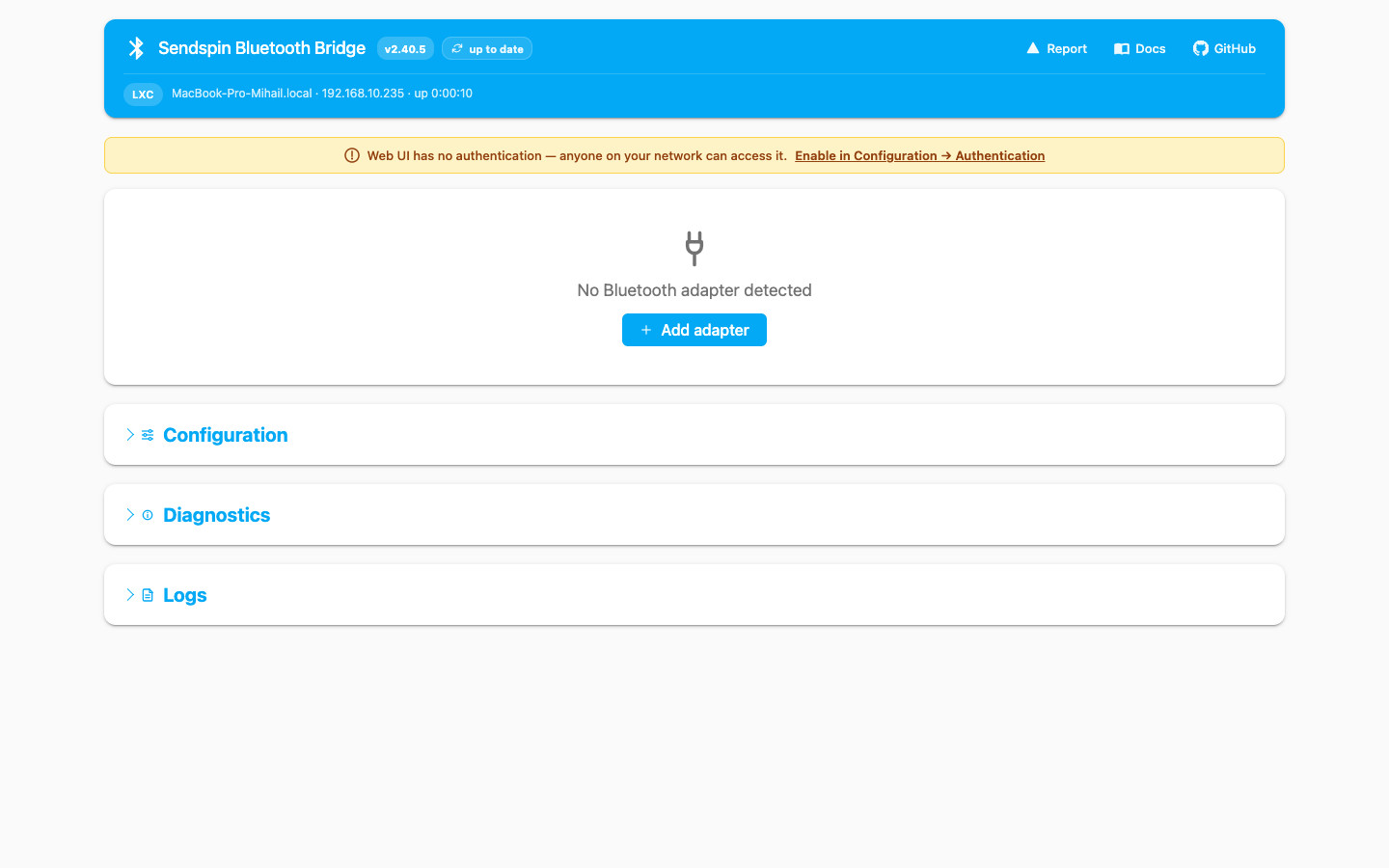
The empty-state actions now jump to the exact working surface:
- No Bluetooth devices configured → Scan for devices opens the Bluetooth tab and launches the Scan nearby modal.
- No Bluetooth adapter detected → Add adapter opens Configuration → Bluetooth, inserts an empty manual adapter row, and focuses the first field.
- Device gear → highlights the matching row in Configuration → Devices.
- Adapter gear / adapter shortcut → highlights the matching row in Configuration → Bluetooth.
Authentication and security UX
Section titled “Authentication and security UX”Standalone installs expose a dedicated Security tab for local access control:
- Enable web UI authentication toggle.
- Session timeout in hours.
- Brute-force protection toggle plus max-attempt, window, and lockout fields.
- Set password flow with password confirmation.
When auth is disabled, the page shows a yellow warning banner with a shortcut that jumps straight to Configuration → Security and highlights the auth toggle.
In HA addon mode, Home Assistant owns access control and auth is always enforced, so the local Security tab is replaced by the addon auth model and direct HA login / TOTP flow. Use Save & Restart after changing auth, session, or port settings because those behaviors are applied at startup.
Diagnostics
Section titled “Diagnostics”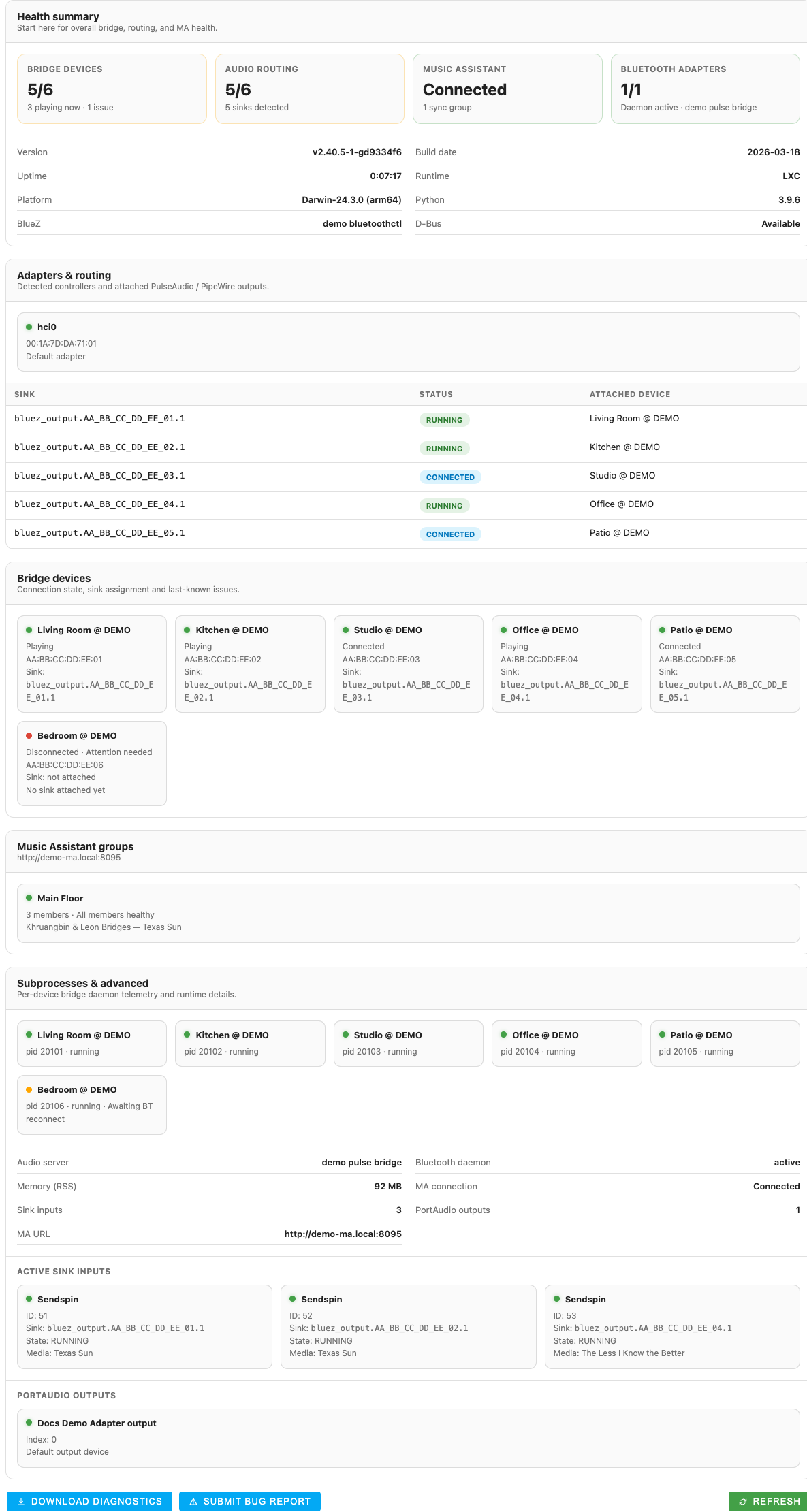
Diagnostics is a live troubleshooting surface, not just a static info dump. It includes:
- Bridge device counts and sink routing summary.
- Music Assistant state and sync-group summary.
- Adapter inventory and attached sinks.
- Per-device runtime cards with connection and last-known issues.
- Subprocess and advanced runtime information.
- Download diagnostics, Submit bug report, and Refresh actions.
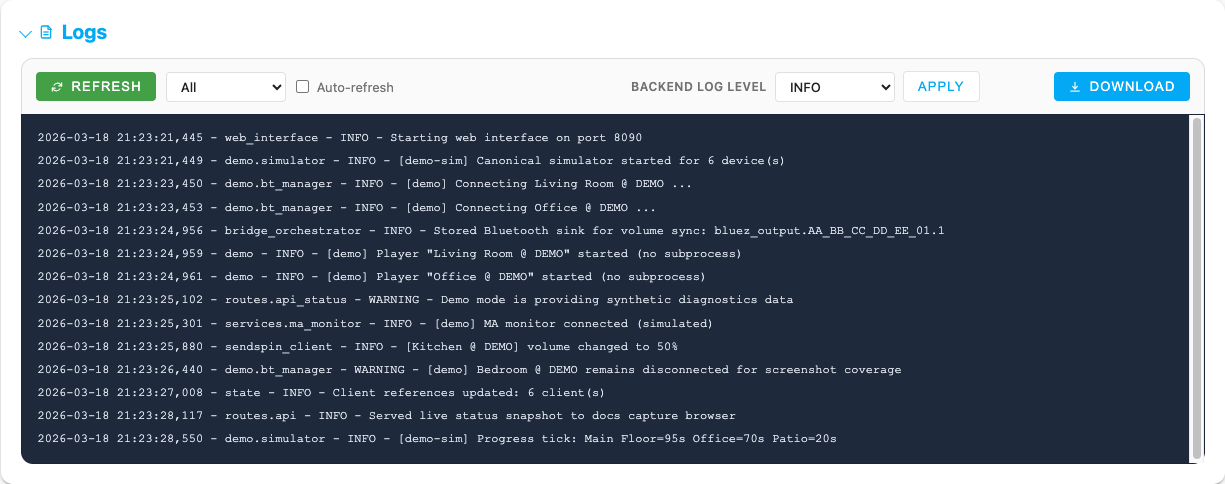
The Logs section exposes both log viewing and runtime control:
- Filter by All / Errors / Warnings / Info+ / Debug.
- Toggle Auto-refresh.
- Change the backend log level between INFO and DEBUG without a restart.
- Download the current log output.
Updates and bug reports
Section titled “Updates and bug reports”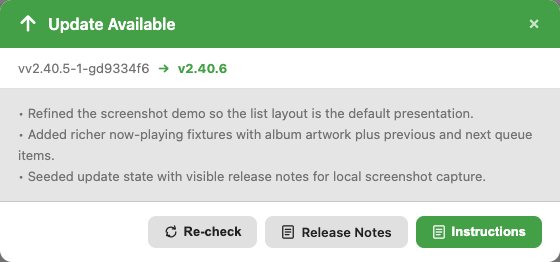
Clicking the update badge opens a modal that summarizes:
- Current vs target version.
- Short release notes excerpt.
- Runtime-specific actions such as Update Now, Release Notes, or a manual update hint.
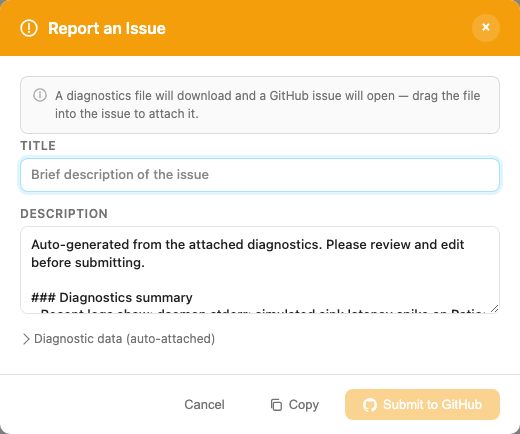
The header Report link and the Diagnostics action both open the bug-report flow. The dialog now pre-fills the description with a diagnostics-generated suggested summary, lets you edit it before submission, and keeps the full auto-attached diagnostics report available in an expandable preview.