Devices & Adapters
First-run guidance and empty states
Section titled “First-run guidance and empty states”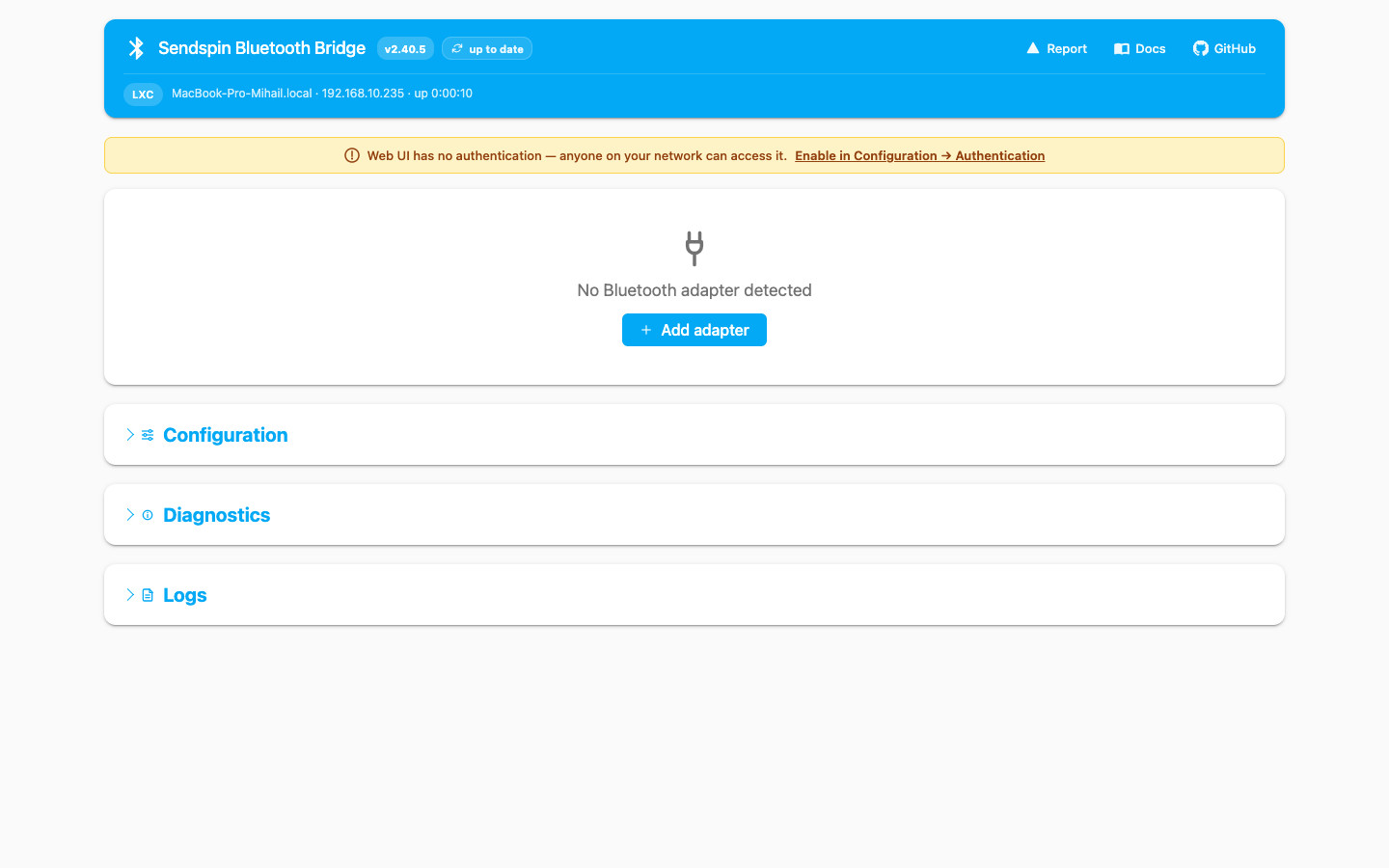
The bridge now guides first-run setup from the top of the dashboard before you ever open logs.
Setup checklist
Section titled “Setup checklist”When the bridge is missing key setup steps, the page can show a Setup checklist card with explicit Show checklist / Hide checklist controls.
- Expanded mode shows the next steps and one-click actions.
- Collapsed mode keeps a compact summary such as
2/5 complete - Next: Scan nearby devices. - Don’t show again hides it until you re-enable Show empty-state onboarding guidance in Configuration → General.

Empty-state shortcuts
Section titled “Empty-state shortcuts”When the checklist is not taking over the page, the empty state gives you the fastest next action:
- If no adapter is detected, Add adapter opens Configuration → Bluetooth, inserts a manual adapter row, and focuses the first field.
- If adapters exist but no speakers are configured, Scan for devices opens the Scan nearby modal and highlights Start Scan without starting radio traffic automatically.
Adding a speaker
Section titled “Adding a speaker”The recommended flow is now split between the Bluetooth and Devices tabs:
- Open Configuration → Bluetooth.
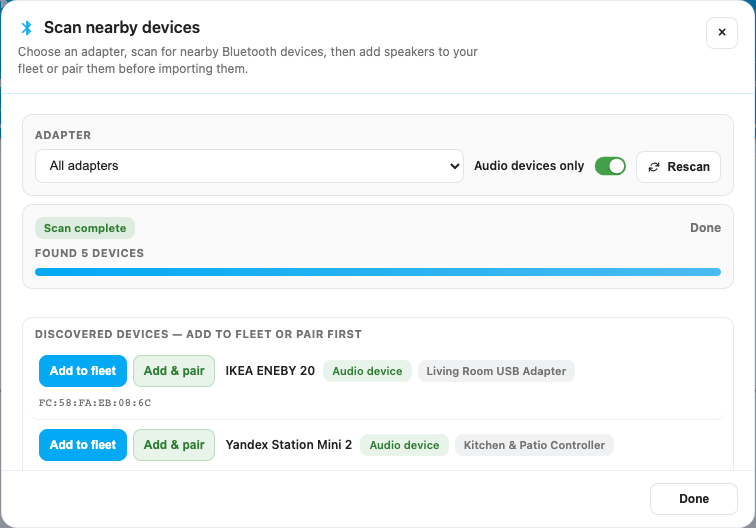
- Click Scan nearby.
- Confirm the specific adapter that should perform the scan.
- Leave Audio devices only enabled unless you are debugging non-audio candidates.
- Use Add or Add & Pair on a discovered speaker.
- Open Configuration → Devices to fine-tune player name, adapter binding, ports, delay, and advanced fields.
- Save the config, then restart if required for your change.
Scan modal behavior
Section titled “Scan modal behavior”The Bluetooth scan flow is now a dedicated modal instead of an inline card.
- The scan runs in the background and shows a live countdown/progress bar.
- Rescan is available from inside the modal after the cooldown expires.
- Add & Pair performs pairing/trust/connect before importing the device.
- Every scan uses one explicit adapter, so results and later pairing actions have unambiguous controller attribution.
- Turning off Audio devices only is useful when you need to inspect non-speaker Bluetooth candidates.
Already paired devices
Section titled “Already paired devices”The Already paired devices list in Configuration → Bluetooth lets you import speakers the host already knows about without scanning again.
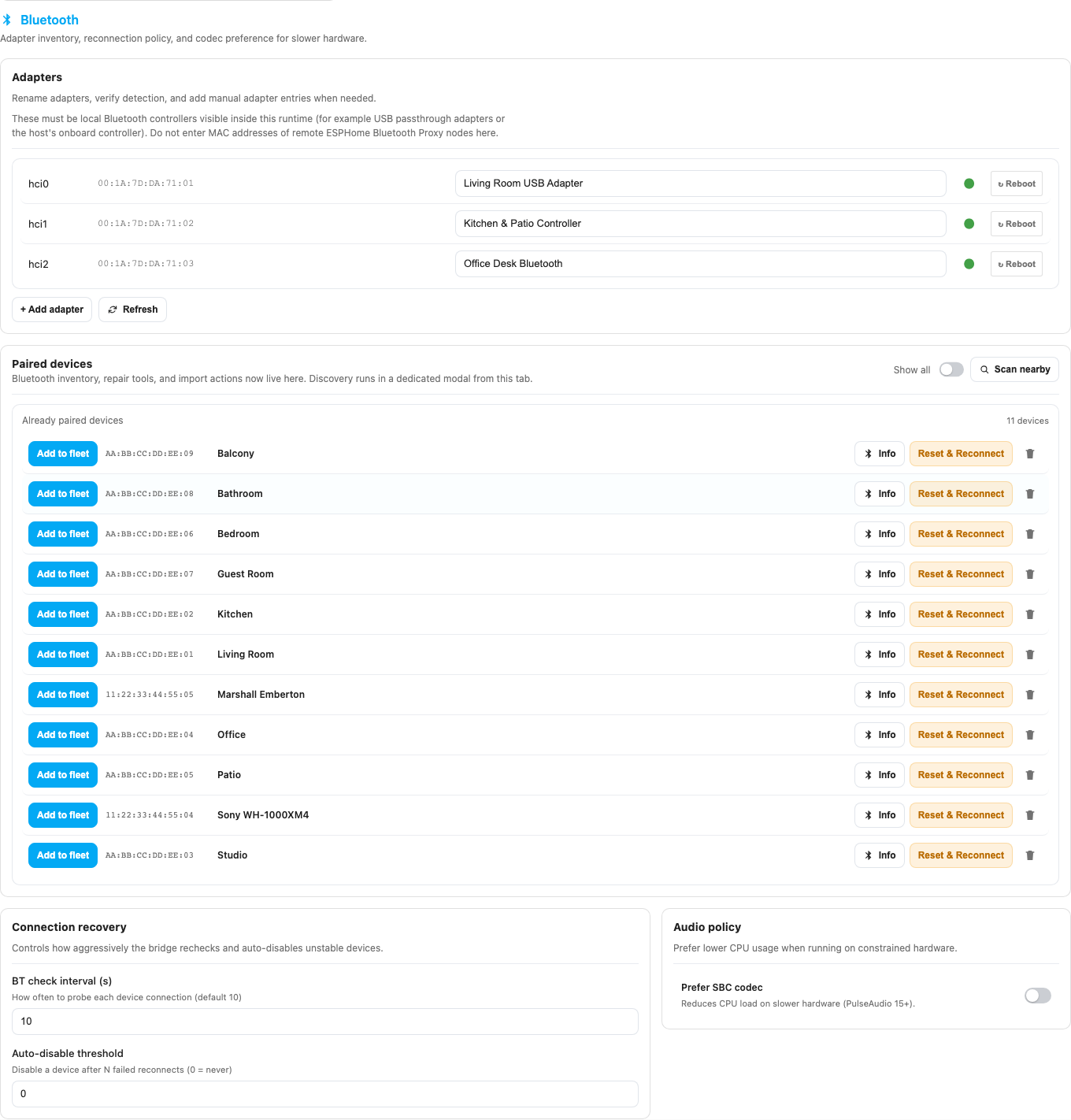
Use it when:
- the speaker is already paired from a previous setup;
- a scan is not finding it but the host-level pairing still exists;
- you want repair/reset tools without touching the saved device fleet first.
Device fleet table
Section titled “Device fleet table”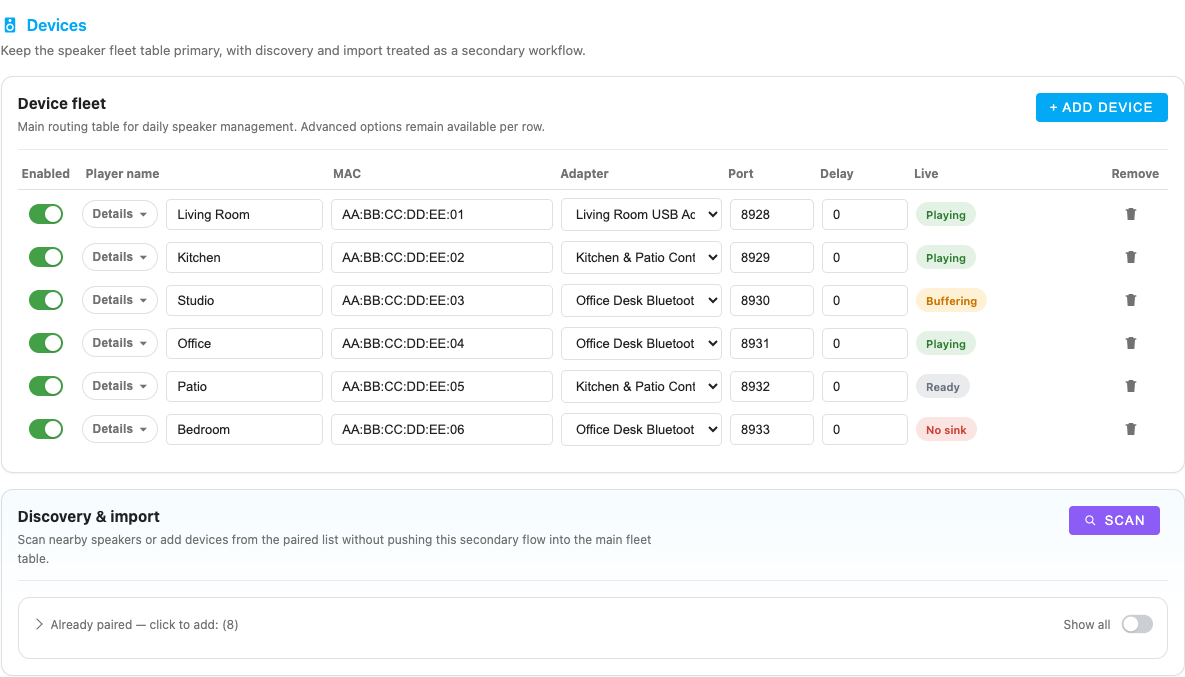
The Device fleet table is the canonical place for saved speaker configuration.
| Column | What it controls |
|---|---|
| Enabled | Whether the device should remain part of the saved bridge fleet |
| Player name | Friendly MA-visible name |
| MAC | Bluetooth address |
| Adapter | Specific controller binding |
| Port | Custom sendspin listener port |
| Delay | static_delay_ms sync offset |
| Live | Runtime state badge from the currently running bridge |
| Actions | Remove the row or act on the saved configuration |
Expanding a row reveals advanced fields such as preferred format, listen host, and keepalive interval.
Per-device ports, hosts, and keepalive
Section titled “Per-device ports, hosts, and keepalive”The current device flow uses these network/runtime fields:
| Field | Current behavior |
|---|---|
listen_port | If set, the device always uses that explicit port |
listen_host | Overrides the advertised host/address for that device listener |
keepalive_interval | Any positive value enables silence keepalive; values below 30 seconds are raised to 30 |
keepalive_silence | Legacy compatibility field from older addon configs; the current web UI no longer exposes it as a separate toggle |
If listen_port is empty, the runtime falls back to BASE_LISTEN_PORT + device index. Every effective listener port must be unique. For multi-bridge setups on one host, either assign different BASE_LISTEN_PORT ranges per bridge or set explicit listen_port values for every speaker.
listen_host is mainly useful when Music Assistant must reach the bridge through a different address than the one the bridge would auto-detect.
Adapter management
Section titled “Adapter management”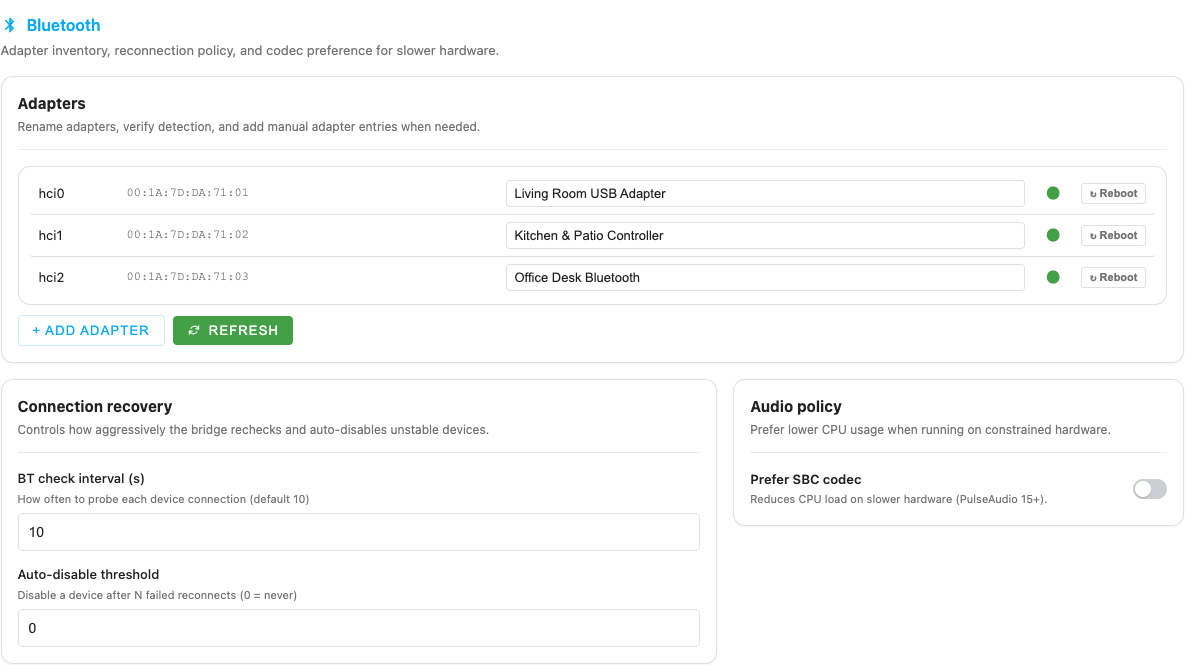
The Bluetooth tab is where adapter-level management lives:
- Friendly adapter names for clearer dashboard badges.
- Manual adapter entries for unusual environments.
- Refreshing detection without leaving the page.
- Paired-device inventory, scan tools, and repair actions.
- Connection recovery policy and codec preference.
Binding a speaker to an adapter
Section titled “Binding a speaker to an adapter”In the device row, set Adapter to either:
hci0,hci1, etc. for interface names.- The adapter MAC address when names are unstable or ambiguous.
Using the adapter MAC is especially helpful in some LXC environments where hciN naming can change after reboot.
Dashboard deep links
Section titled “Dashboard deep links”The dashboard links back into configuration instead of sending you to a generic section:
- Device gear → highlights the matching row in Configuration → Devices.
- Adapter gear / adapter shortcut → highlights the matching row in Configuration → Bluetooth.
- Group badge → opens the corresponding Music Assistant group settings page in a new tab.
Grid and list views
Section titled “Grid and list views”The same fleet can be viewed in two layouts:
- List view is the current default and works best for larger or more active fleets.
- Grid view is still available when you want card-style browsing.
Your manual choice is remembered in the browser and reused on the next visit.
Release, reclaim, disable, and repair
Section titled “Release, reclaim, disable, and repair”
The current UI exposes several device-management actions that solve different problems.
| Action | Where | Use it when |
|---|---|---|
| Reconnect | Dashboard action | You want to force a Bluetooth reconnect without changing config |
| Re-pair | Dashboard action | The host pairing/trust state is stale or broken |
| Release | Dashboard action | You want to temporarily give the speaker back to another source |
| Reclaim | Dashboard action | You want the bridge to take Bluetooth management back |
| Disable | Configuration → Devices | The speaker should stay in the saved fleet but not be used by the bridge until you re-enable it |
| Remove | Configuration → Devices | You no longer want this saved device row at all |
| Paired-device reset/remove | Configuration → Bluetooth | You need to clear broken host-level pairing or cleanup stale Bluetooth records |
The important distinction:
- Release / Reclaim is an immediate live-runtime handoff. The device stays configured, but the bridge stops trying to own the Bluetooth connection until you reclaim it.
- Disable / Enable is a saved fleet decision. Use it when the bridge should stop treating that device as part of the active configuration.
- Re-pair or paired-device reset/remove is for broken host pairing, trust, or stale Bluetooth records.
Reconnect policy and auto-disable
Section titled “Reconnect policy and auto-disable”The Bluetooth tab controls two behaviors that affect device availability:
- BT check interval decides how often the bridge probes and retries Bluetooth recovery.
- Auto-disable threshold can persist a device as disabled after repeated failed reconnects.
If a speaker keeps flapping, the bridge may protect the rest of the group by auto-disabling it. Re-enable the device in Configuration → Devices after fixing the underlying Bluetooth problem.
Delay tuning and keepalive
Section titled “Delay tuning and keepalive”Use these per-device fields when tuning difficult speakers:
static_delay_ms— declares how much extra latency this speaker’s hardware adds beyond the PulseAudio / PipeWire sink the bridge writes into (Bluetooth radio, codec, speaker DSP, amplifier). Per the Sendspin protocol, the bridge subtracts this value from each chunk’s play-time so audio is handed off to the kernel earlier by exactlystatic_delay_ms; the hardware then adds its real latency back and the acoustic output lands on the scheduled timestamp. The web UI pre-fills 300 ms for every newly added device because that is a reasonable starting estimate of post-sink BT pipeline latency on typical consumer speakers, and field reports showed it gives a noticeably better baseline than0for A/V sync — especially on Ubuntu / PipeWire hosts. Raise the value for speakers that consistently play behind the rest of a group (audible as their output trailing the others by a few hundred ms or more) — that means their real hardware latency exceeds whatstatic_delay_mscurrently compensates. Lower it for speakers that play ahead. Negative values are not accepted — sendspin 7.0+ rejects them, and any legacy negative value in an imported config is clamped to0at migration time. The range is0–5 000 ms; cheap BT speakers with large internal jitter buffers may need values approaching 1 000 ms.keepalive_interval— periodically sends silence so some speakers do not fall asleep between tracks.keepalive_silence— legacy boolean from older addon configs; keepalive is now effectively controlled bykeepalive_interval > 0.keep_alive_method— how the bridge keeps the speaker awake when keep-alive is active:infrasound(default) — emits a near-inaudible 2 Hz pulse train. Works on speakers that hard-mute regular silence as a power-save trick.silence— pushes plain digital silence. Lowest impact on quality but ineffective on speakers that mute the line on flat zero samples.none— disables the active emission entirely; equivalent to “keep the BT link up but stay quiet”. Use this for speakers that never sleep on their own anyway.
preferred_format— can reduce resampling or CPU load depending on your MA output settings.
Measuring per-speaker latency with MassDroid
Section titled “Measuring per-speaker latency with MassDroid”For stubborn multi-speaker groups, guessing static_delay_ms purely by ear is slow. A practical shortcut is to measure the actual acoustic round-trip time (RTT) of each speaker with MassDroid — a third-party native Android client for Music Assistant that ships with a built-in acoustic calibration tool. Use it as a diagnostic, not as a direct source of static_delay_ms values.
What MassDroid actually measures. With phone calibrated first as a baseline, MassDroid plays six 1 kHz tone bursts through the paired BT speaker and records them back via the phone microphone. A native C++ DSP pipeline detects tone onsets via bandpass filtering and envelope SNR, averages them, and reports:
BT delay— absolute round-trip in milliseconds (playback sample → DAC → transport → air → mic). Typical BT speakers land between ~150 ms and ~400 ms.+X ms over phone— how much of that is pure BT pipeline contribution vs. the phone’s own baseline.- Quality —
GOOD,MARGINAL, orFAILED(based on tone count, variance across tones, and SNR).
Why the raw number does not transfer 1 : 1. MassDroid measures the full acoustic round-trip (DAC + transport + air + microphone capture). Sendspin’s DAC-anchored sync already absorbs the parts of the pipeline that PulseAudio / PipeWire reports, plus the mic-capture leg is yours, not the bridge’s. What is transferable is the ranking and the deltas between speakers: in a group, the speaker with the highest measured RTT has the most uncompensated hidden latency and should carry the largest static_delay_ms; lower-RTT speakers need a smaller value.
Suggested workflow:
- Install MassDroid on an Android 8.0+ phone and point it at the same Music Assistant server.
- In MassDroid, open the Sendspin (local) player → 3-dot menu → Player Settings → run Phone speaker calibration first (required baseline with Bluetooth disconnected, media volume 50–70 %, quiet room).
- Pair the phone directly with each BT speaker in the problem group in turn, and run Bluetooth device calibration. Only accept results graded
GOOD; retry with the phone closer to the speaker and the room quieter if you seeMARGINALorFAILED. - Note each speaker’s reported BT delay. The speaker with the highest value is the slowest one — it has the most uncompensated hardware latency past the sink.
- As a starting point, raise
static_delay_mson each speaker by roughlythis_rtt − min_rtton top of the bridge default, so every speaker advertises a delay close to its real-world hardware latency. For example, if one speaker measures 180 ms and another 260 ms, try setting the 260 ms one ~80 ms higher than the 180 ms one. - Fine-tune by ear in a grouped playback scenario. Changes take effect mid-stream via the
set_static_delay_msIPC command — no daemon restart needed.
Standby & Wake-on-play
Section titled “Standby & Wake-on-play”The bridge supports idle standby: after a configurable period of silence the Bluetooth connection is dropped and the speaker enters a low-power state. The MA player remains visible, and when playback is triggered, the bridge automatically reconnects (“wake-on-play”).
How it works
Section titled “How it works”- Set Idle standby (min) in the device’s expanded row (Configuration → Devices). A value of
0means always connected. - After the configured idle time the bridge disconnects Bluetooth and routes audio to a PulseAudio null sink.
- The device card shows a 💤 Standby badge and a ☀️ Wake button.
- When MA sends a play command, the bridge reconnects Bluetooth automatically (~5 s latency).
- Sync-group members wake each other: if one device wakes, the rest follow.
Speaker auto-off and deep sleep
Section titled “Speaker auto-off and deep sleep”The duration of this connectable window depends entirely on the speaker’s firmware and cannot be changed by the bridge:
| Category | Examples | Connectable window |
|---|---|---|
| AC-powered speakers | Sonos, Marshall Stanmore/Woburn, smart speakers | Indefinitely (always on) |
| Battery, auto-off disabled | Sony XM4/5, Bose SoundLink, JBL (via companion app) | Until battery dies (6–24 h) |
| Battery, auto-off configurable | Sony (5 min–3 h), Bose (5–60 min), JBL (10–60 min) | Depends on setting |
| Battery, fixed auto-off | IKEA ENEBY/SYMFONISK (~15–20 min), budget speakers | Cannot be changed |
Disabling speaker auto-off
Section titled “Disabling speaker auto-off”Many speakers allow disabling or extending the auto-off timer through a companion app or hardware button combination:
- Sony — Sony Headphones Connect app → System → Auto Power Off → Do not turn off
- Bose — Bose app → Settings → Auto-Off → Never, or hold Mute button for 10 s
- JBL — JBL Portable / JBL One app → Settings → Auto-Off → Disable
- Jabra — Jabra Sound+ app → Headset settings → Auto-off
There is no Bluetooth protocol command to change this remotely — it must be configured on the device itself.
Recommendations
Section titled “Recommendations”- For AC-powered speakers: idle standby works perfectly at any timeout.
- For battery speakers with disabled auto-off: set idle standby freely; wake-on-play will work until the battery runs out.
- For speakers with fixed auto-off: set
idle_disconnect_minutesto a value shorter than the speaker’s auto-off timer, so the bridge can reconnect before the speaker goes to deep sleep. - Keep-alive and idle standby are mutually exclusive — if keep-alive is enabled, idle standby is automatically disabled.
Mutual exclusion with keep-alive
Section titled “Mutual exclusion with keep-alive”Keep-alive sends periodic silence to prevent the speaker from sleeping. Idle standby intentionally disconnects after silence. These two features have opposite goals, so only one can be active at a time:
- In the UI, enabling one disables the other.
- If both are set in the config file, keep-alive takes priority and the idle timer is skipped (a warning is logged at startup).