Web UI
The web interface is available through a direct browser port controlled by WEB_PORT (default 8080 for standalone installs) and through HA Ingress for the Home Assistant addon. In addon mode, WEB_PORT can open an extra direct listener, but Ingress keeps using the fixed addon channel port. The page updates in real time over Server-Sent Events, so most status changes appear without a refresh.
Sign-in flow
Section titled “Sign-in flow”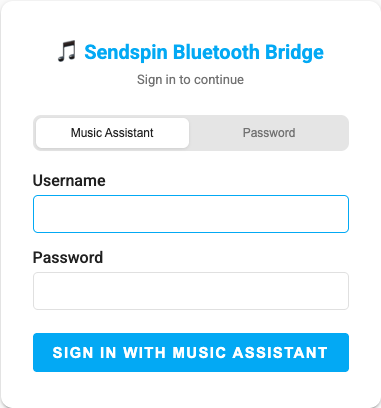
When authentication is enabled, the bridge shows a dedicated sign-in screen before the dashboard.
| Method | When it appears | Notes |
|---|---|---|
| Home Assistant | Always in HA addon mode, or in standalone when the bridge is connected to an HA-backed Music Assistant instance | Uses the HA login_flow, including TOTP / MFA |
| Music Assistant | Standalone installs already connected to MA with a built-in MA token flow | Validates MA credentials against the connected MA server |
| Password | Standalone auth is enabled and a local password hash exists | PBKDF2-SHA256 local password flow |
If Home Assistant requires MFA, the page switches to a 6-digit verification step. In standalone mode, the Security tab controls the session timeout and brute-force policy for these logins. Login forms are CSRF-protected, and standalone sessions use SameSite=Lax plus HttpOnly cookies.
Dashboard overview
Section titled “Dashboard overview”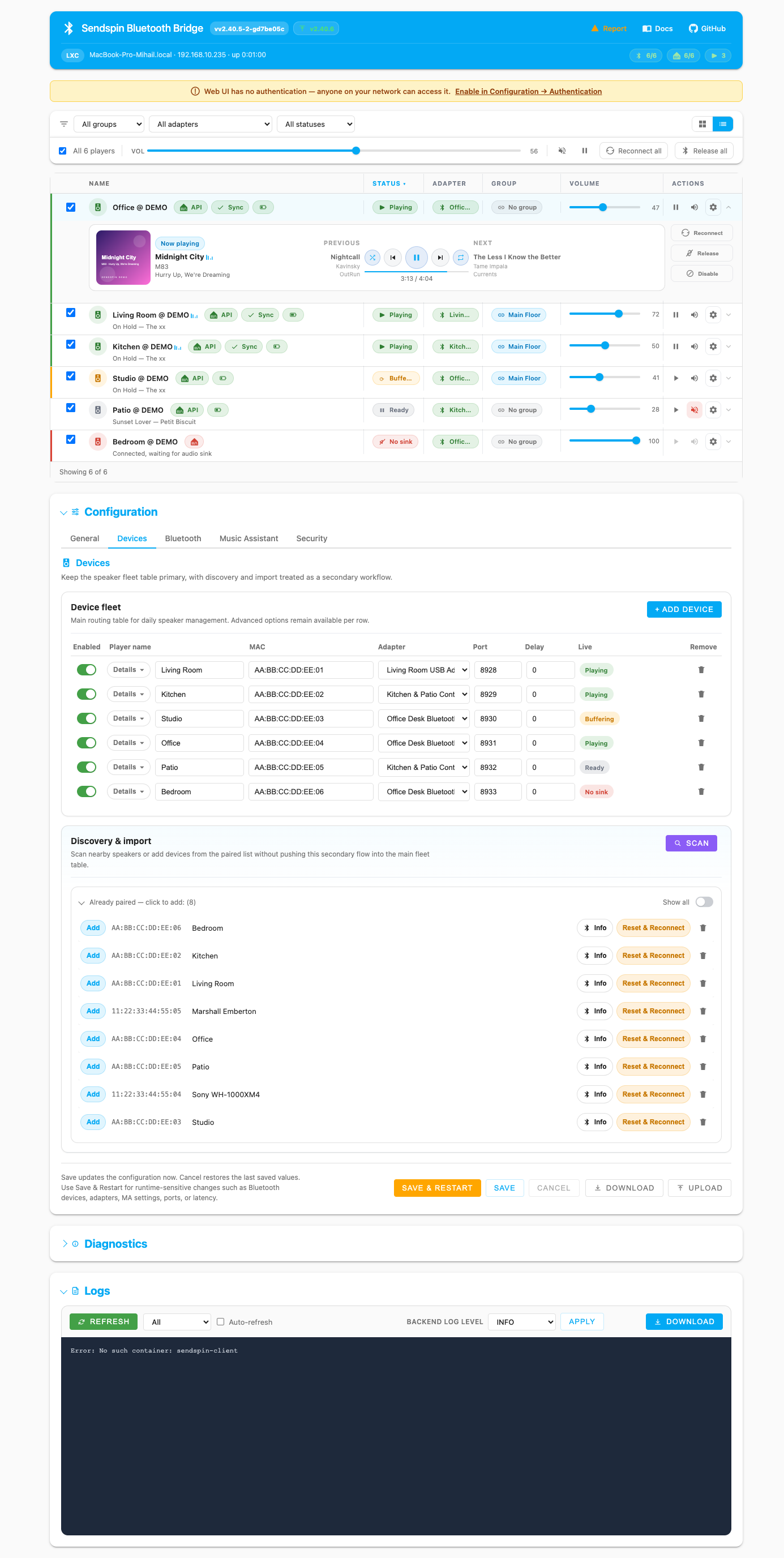
The top of the page combines the live device dashboard with quick filters and batch actions:
- Device cards or list rows for every configured speaker.
- Realtime status for Bluetooth, sink routing, playback, Music Assistant connectivity, and sync state.
- Configuration, Diagnostics, and Logs as collapsible sections below the live fleet view.
Header
Section titled “Header”
The header is split into a main action row and a runtime/status row.
Main row
Section titled “Main row”- Bridge title and logo — always shown on the left.
- Version badge — links directly to the matching GitHub release.
- Update badge — shows
check,up to date, or a target version such asv2.31.8. - Report / Docs / GitHub — quick links for support and documentation.
- User area — shows the current user and Sign out when authentication is active.
Runtime row
Section titled “Runtime row”- Runtime chip such as
LXCorsystemd. - Hostname, IP, and uptime.
- Health pills summarizing Bluetooth devices, Music Assistant state, and active playback.
- Restart progress banner during Save & Restart.
Filters, batch actions, and view modes
Section titled “Filters, batch actions, and view modes”
The toolbar above the fleet view includes:
- Group filter — show one Music Assistant sync group or all groups.
- Adapter filter — narrow the view to a specific Bluetooth adapter.
- Status filter — filter by playing, idle, reconnecting, released, or error states.
- Selection controls — select all visible devices, then apply group volume, mute, pause, reconnect, or release.
- Grid/List toggle — switch between card view and table view.
Grid vs list
Section titled “Grid vs list”The bridge now chooses a better default layout automatically:
- Up to 6 devices → default grid view.
- More than 6 devices → default list view.
- Manual choice is remembered in browser storage, so the next visit keeps your preferred layout.
In list view, one row can be expanded at a time for transport controls, routing details, and device actions. The list auto-expands the most relevant row on load, usually the first active device.
Device cards and rows
Section titled “Device cards and rows”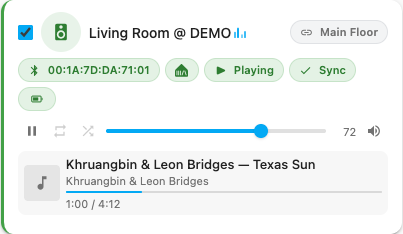
Each device exposes the same core information in both grid and list layouts:
- Player name and playback animation.
- Bluetooth and Music Assistant state.
- Track, artist, progress, and album art when available.
- Volume and mute controls.
- Sync badges including re-anchor status and configured delay.
- Battery and adapter badges when those signals are available.
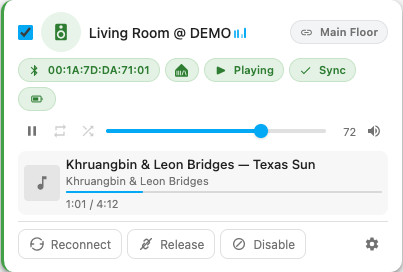
Hovering a card reveals more context and quick actions, including:
- Reconnect and Re-pair.
- Release / Reclaim for temporarily handing the speaker back to a phone or PC.
- BT Info modal for copyable diagnostics.
- Settings gear that jumps straight into the matching row in Configuration → Devices.
Group badges are interactive too: clicking a Music Assistant group badge opens the matching group settings page in the MA web UI.
Configuration panel
Section titled “Configuration panel”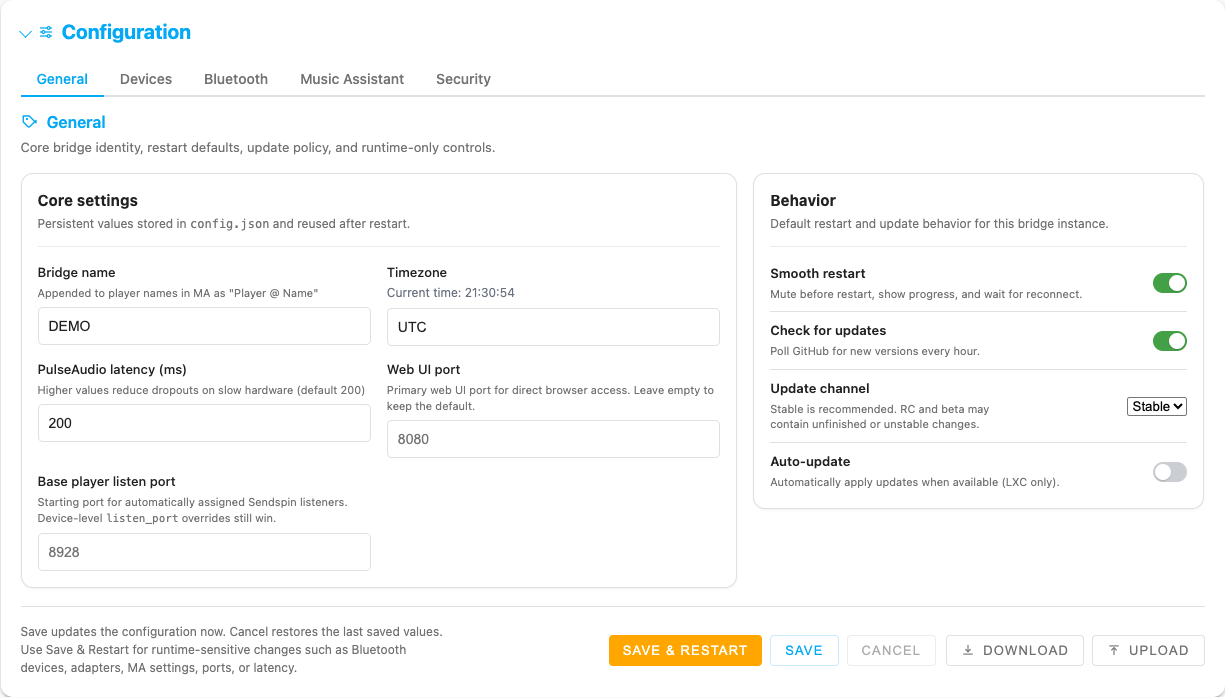
The redesigned Configuration section is now organized into five tabs:
| Tab | Purpose |
|---|---|
| General | Bridge identity, timezone, latency, direct web port, base listener port, restart behavior, update policy |
| Devices | Speaker fleet table plus discovery/import workflows |
| Bluetooth | Adapter inventory, reconnect policy, codec preference |
| Music Assistant | Connection status, token flows, monitor and routing toggles |
| Security | Local auth, session timeout, brute-force settings (standalone only) |
The footer actions behave differently on purpose:
- Save writes the config without forcing a restart.
- Save & Restart applies restart-sensitive changes immediately and shows progress in the header.
- Cancel restores the last saved values in the form.
- Download exports a share-safe
config.jsonwith sensitive values removed. - Upload imports a config file while preserving the current password hash, secret key, and stored MA token on the server.
Unsaved edits enable Cancel, mark the configuration area as dirty, and trigger a browser warning if you try to leave the page mid-edit.
Devices tab
Section titled “Devices tab”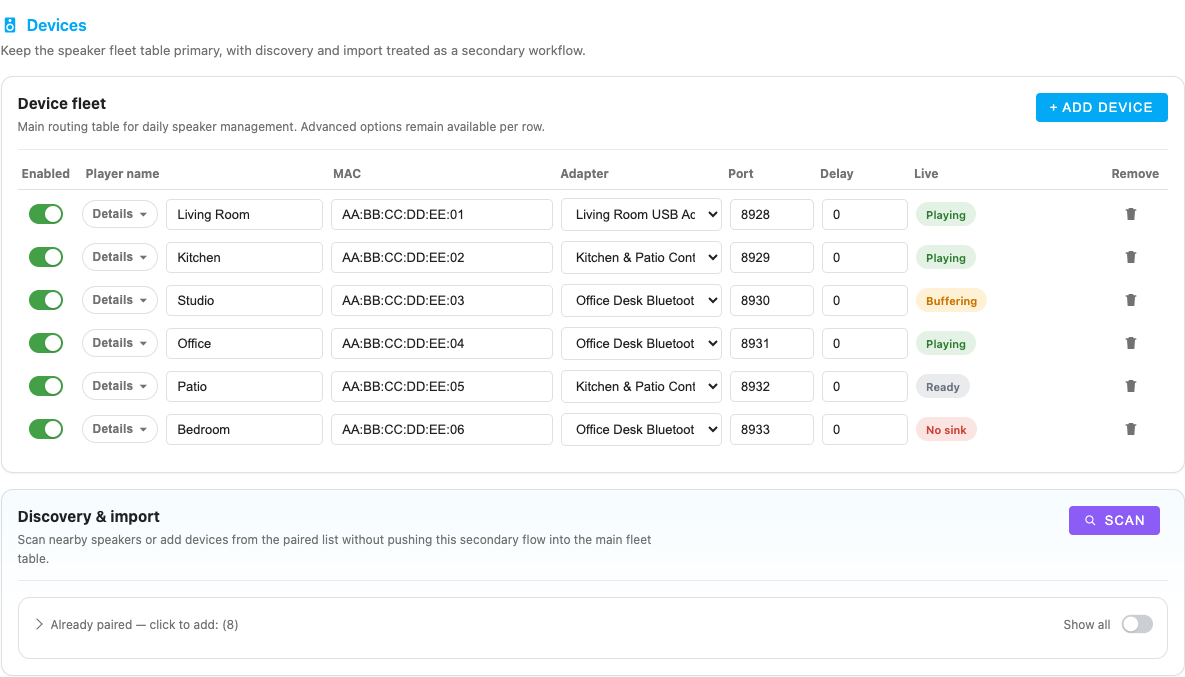
The Devices tab keeps everyday speaker management separate from discovery:
- Device fleet is the primary table for enabled state, player name, MAC, adapter, port, delay, live badge, and removal.
- Discovery & import is a secondary card for scanning nearby speakers or pulling from the already-paired list.
- Device rows support advanced per-speaker settings like preferred audio format,
listen_host, andkeepalive_interval.
If listen_port is left blank, the runtime uses BASE_LISTEN_PORT + device index. Positive keepalive_interval values enable silence keepalive, anything below 30 seconds is raised to 30, and there is no separate current-web-UI toggle for the old keepalive_silence flag. Clicking a device gear from the dashboard scrolls here, highlights the right row, and focuses the relevant field.
Bluetooth tab
Section titled “Bluetooth tab”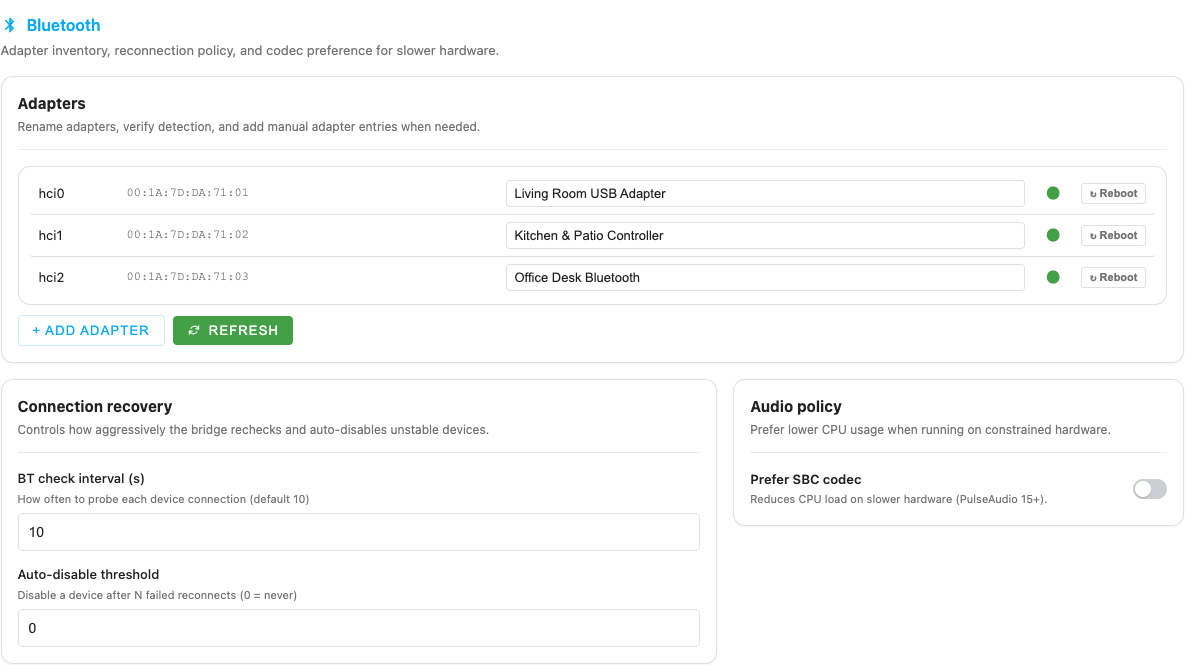
The Bluetooth tab covers adapter-level management:
- Rename detected adapters with friendly names.
- Add manual adapter rows when automatic detection is not enough.
- Refresh the adapter inventory.
- Tune BT check interval and auto-disable threshold.
- Toggle Prefer SBC codec for slower hardware.
Adapter deep links from the dashboard or empty state land directly in this tab and highlight the matching adapter row.
Music Assistant tab
Section titled “Music Assistant tab”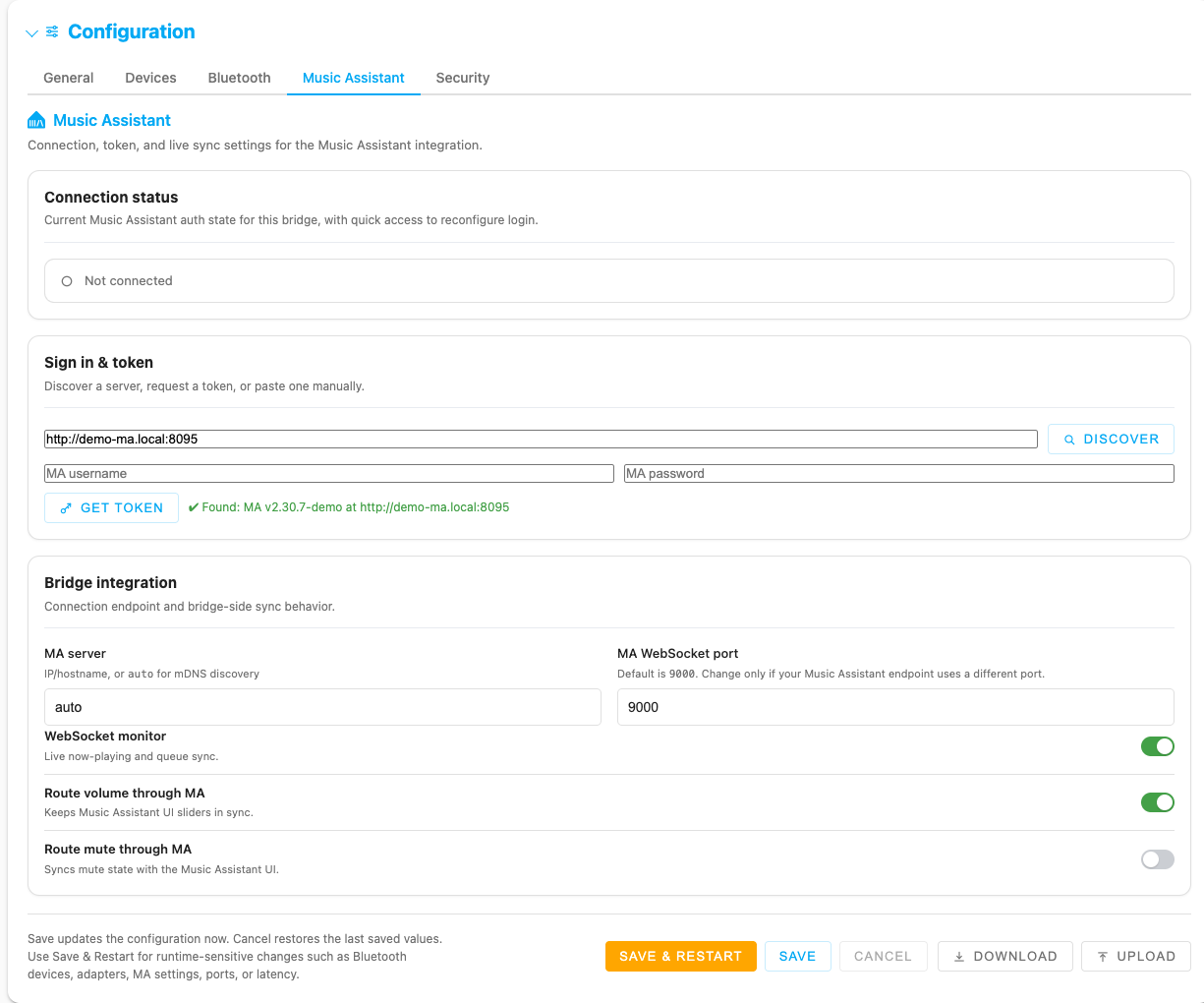
The Music Assistant tab combines connection state with authentication helpers:
- Connection status card for the current MA session.
- Discover finds or confirms the MA URL.
- Get token signs in with MA credentials, saves a long-lived
MA_API_TOKEN, and does not store the password. - If direct MA login returns an auth failure against an HA-backed MA instance, the UI can continue through the Home Assistant OAuth / MFA flow.
- Get token automatically is shown for HA-backed MA targets. Under HA Ingress it first tries silent auth with the browser’s HA token, then falls back to the popup flow if silent auth fails.
- Manual token paste field when you prefer explicit credentials.
- WebSocket monitor, Route volume through MA, and Route mute through MA toggles.
Empty states and deep links
Section titled “Empty states and deep links”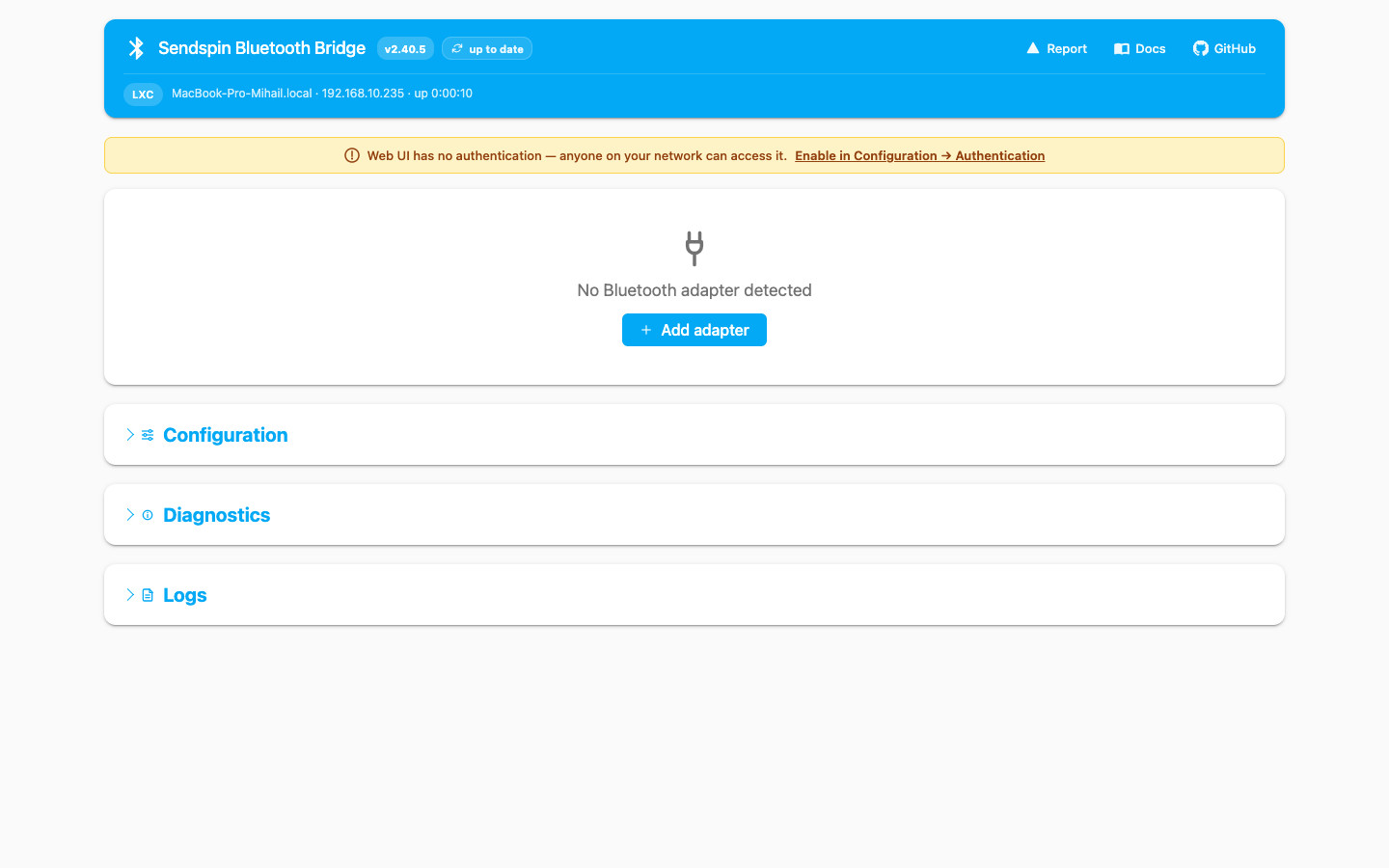
The empty-state actions were updated to follow the redesigned configuration layout:
- No Bluetooth devices configured → Scan for devices opens Configuration → Devices → Discovery & import and starts a scan immediately.
- No Bluetooth adapter detected → Add adapter opens Configuration → Bluetooth, inserts an empty manual adapter row, and focuses the first field.
This means the first CTA is no longer just informational — it takes you to the exact place where the missing setup step can be completed.
Authentication and security UX
Section titled “Authentication and security UX”Standalone installs expose a dedicated Security tab for local access control:
- Enable web UI authentication toggle.
- Session timeout in hours.
- Brute-force protection toggle plus max-attempt, window, and lockout fields.
- Set password flow with password confirmation.
When auth is disabled, the page shows a yellow warning banner with a shortcut that jumps straight to Configuration → Security and highlights the auth toggle.
In HA addon mode, Home Assistant owns access control and auth is always enforced, so the local Security tab is replaced by the addon auth model and direct HA login / TOTP flow. Use Save & Restart after changing auth, session, or port settings because those behaviors are applied at startup.
Diagnostics
Section titled “Diagnostics”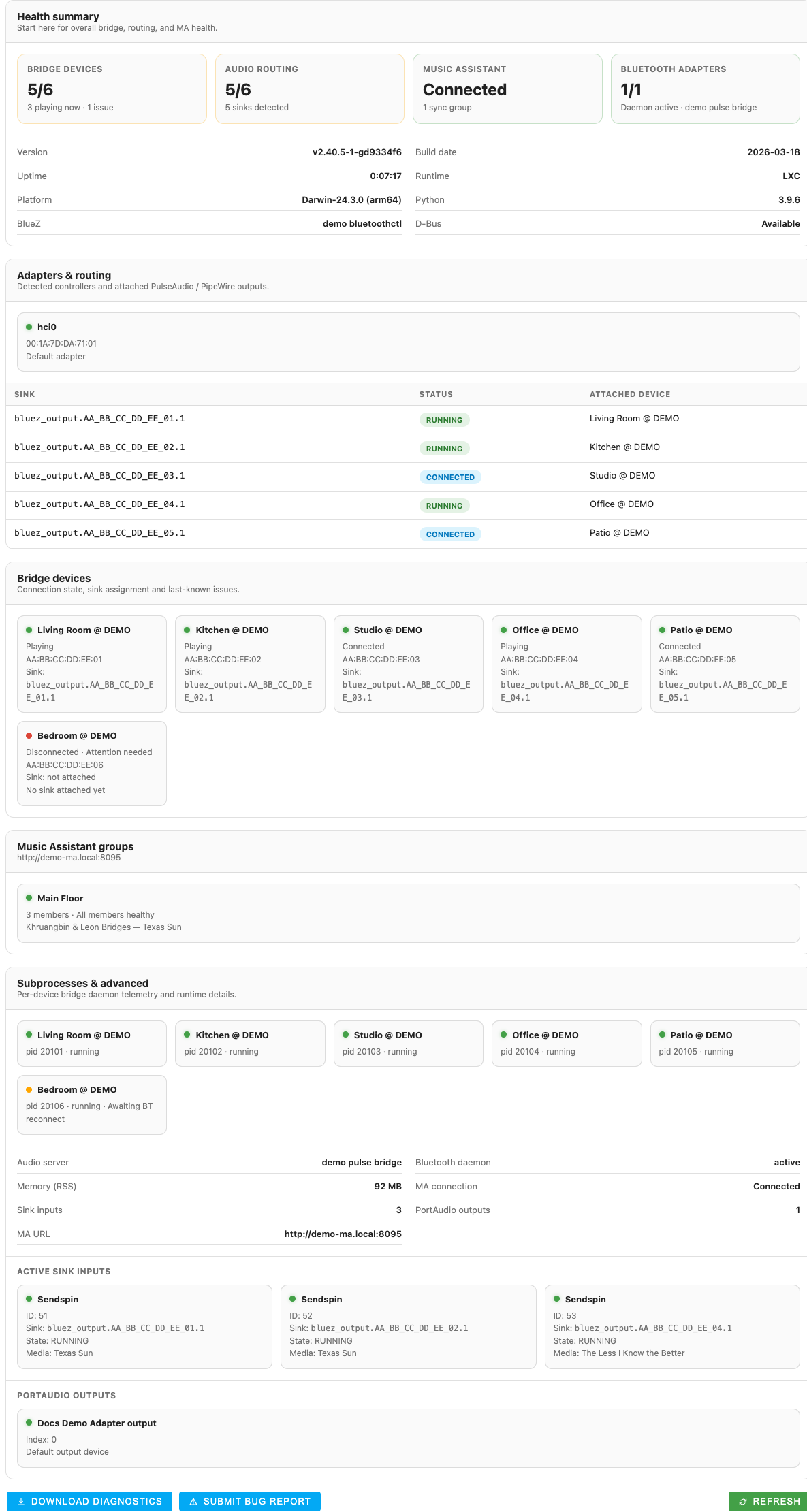
Diagnostics is a live troubleshooting surface, not just a static info dump. It includes:
- Bridge device counts and sink routing summary.
- Music Assistant state and sync-group summary.
- Adapter inventory and attached sinks.
- Per-device runtime cards with connection and last-known issues.
- Subprocess and advanced runtime information.
- Download diagnostics, Submit bug report, and Refresh actions.
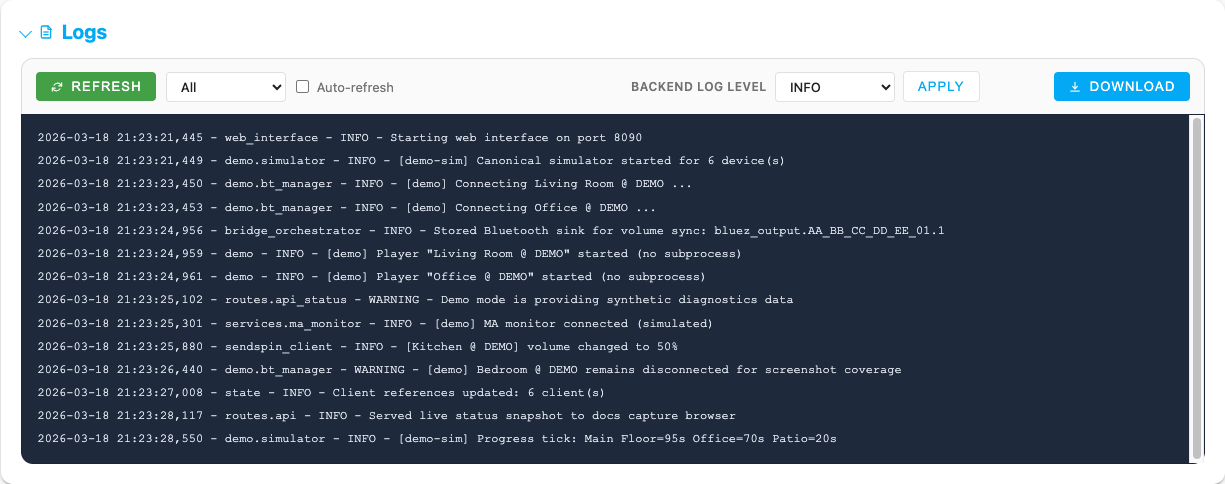
The Logs section exposes both log viewing and runtime control:
- Filter by All / Errors / Warnings / Info+ / Debug.
- Toggle Auto-refresh.
- Change the backend log level between INFO and DEBUG without a restart.
- Download the current log output.
Updates and bug reports
Section titled “Updates and bug reports”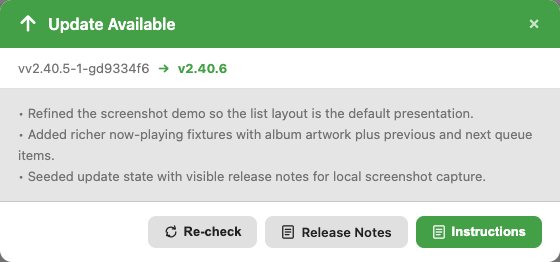
Clicking the update badge opens a modal that summarizes:
- Current vs target version.
- Short release notes excerpt.
- Runtime-specific actions such as Update Now, Release Notes, or a manual update hint.
The header Report link and the Diagnostics action both open the bug-report flow, which packages diagnostics and helps prefill a GitHub issue.