Devices & Adapters
Empty state and first-run flow
Section titled “Empty state and first-run flow”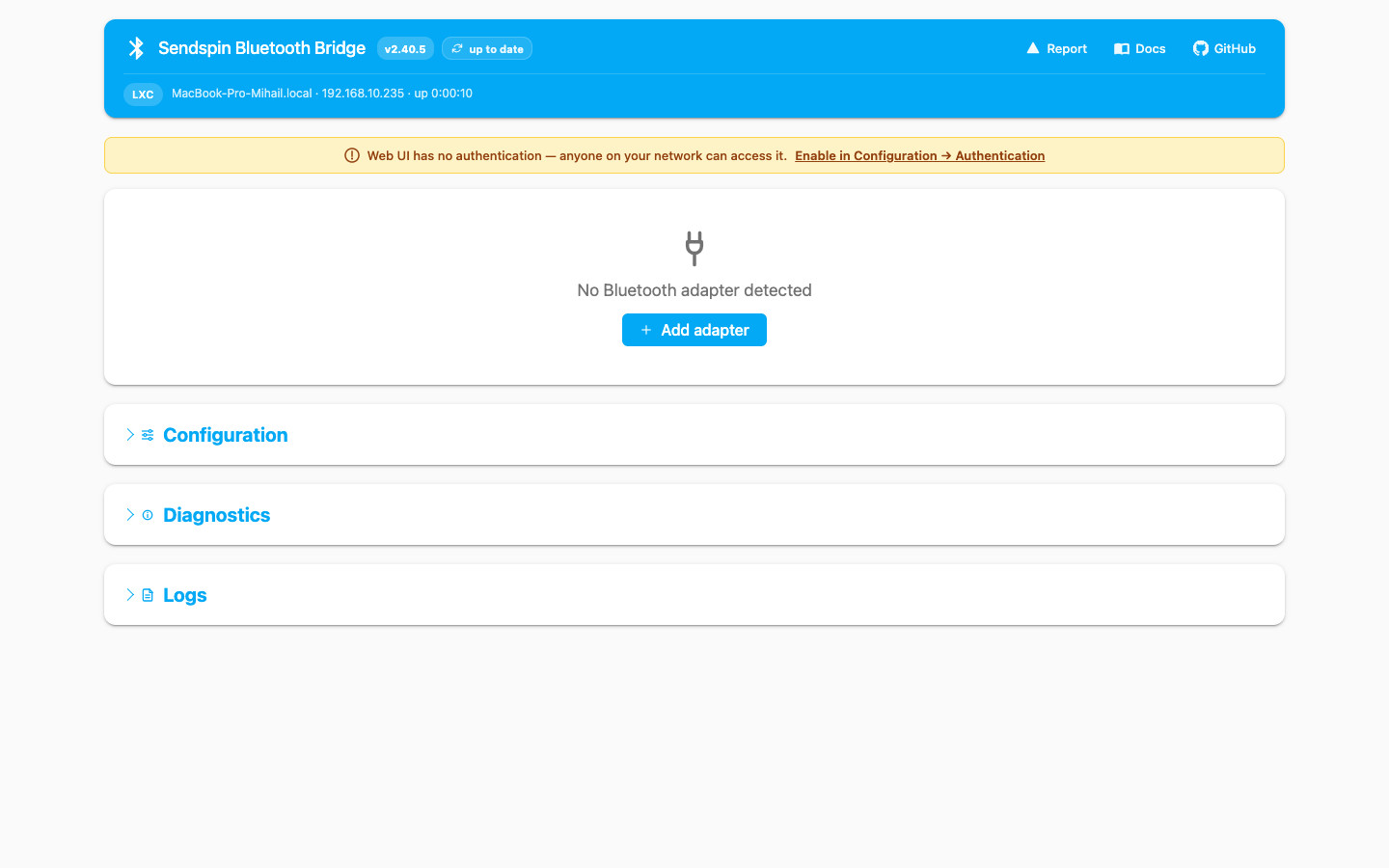
If the bridge already sees an adapter but no configured speakers, the dashboard shows Scan for devices. That shortcut now jumps straight to Configuration → Devices → Discovery & import and starts a scan automatically.
If no adapter is detected at all, the empty state instead offers Add adapter, which opens Configuration → Bluetooth, inserts a manual adapter row, and focuses the first field.
Adding a speaker
Section titled “Adding a speaker”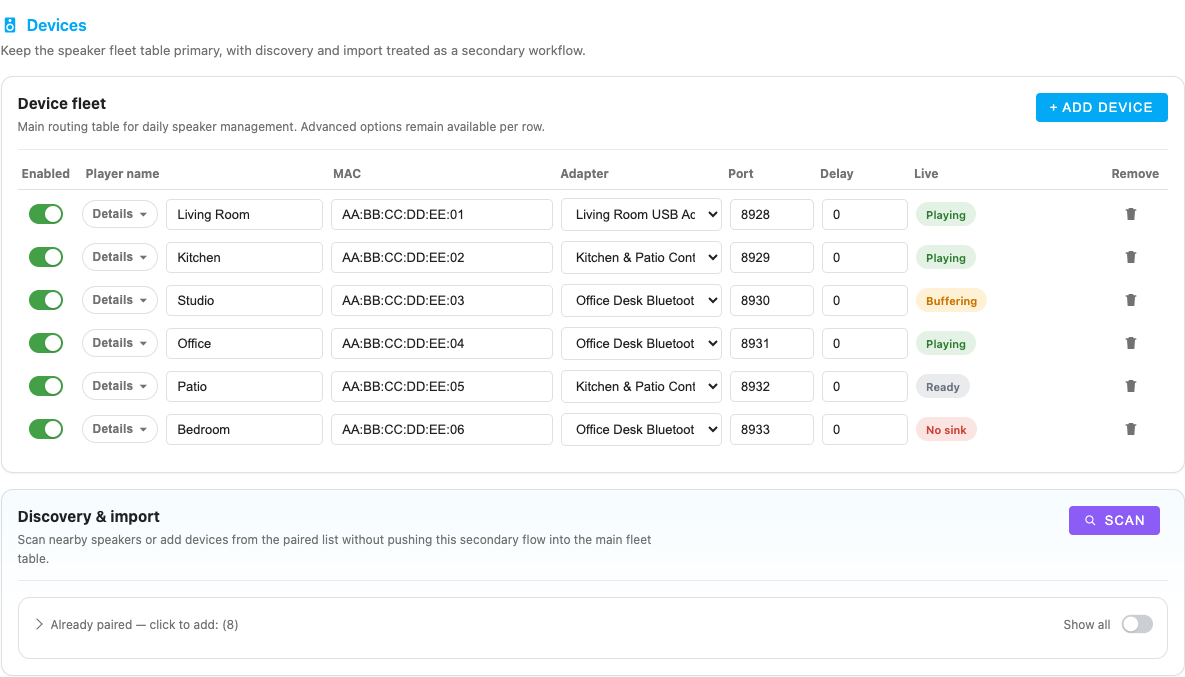
The recommended flow is:
- Open Configuration → Devices.
- Use Scan in Discovery & import.
- Click Add or Add & Pair on a discovered device.
- Fill in the player name and any advanced settings.
- Save the config, then restart if required for your change.
Scan behavior
Section titled “Scan behavior”- The scan runs in the background and polls for results.
- Results can be added directly to the device fleet table.
- Add & Pair performs pairing/trust/connect before inserting the config row.
- After a scan finishes, the button enters a cooldown instead of allowing immediate repeated scans.
Already paired list
Section titled “Already paired list”The Already paired box lets you import devices the host already knows about without scanning again.
Device fleet table
Section titled “Device fleet table”The Device fleet table is the canonical place for speaker configuration.
| Column | What it controls |
|---|---|
| Enabled | Temporarily exclude a device from startup |
| Player name | Friendly MA-visible name |
| MAC | Bluetooth address |
| Adapter | Specific controller binding |
| Port | Custom sendspin listener port |
| Delay | static_delay_ms sync offset |
| Live | Runtime state badge from the currently running bridge |
| Remove | Delete the config row |
Expanding a row reveals advanced fields such as preferred format, listen host, and keepalive interval.
Per-device ports, hosts, and keepalive
Section titled “Per-device ports, hosts, and keepalive”The current v2.40.5 device flow uses these network/runtime fields:
| Field | Current behavior |
|---|---|
listen_port | If set, the device always uses that explicit port |
listen_host | Overrides the advertised host/address for that device listener |
keepalive_interval | Any positive value enables silence keepalive; values below 30 seconds are raised to 30 |
keepalive_silence | Legacy compatibility field from older addon configs; the current web UI no longer exposes it as a separate toggle |
If listen_port is empty, the runtime falls back to BASE_LISTEN_PORT + device index. Every effective listener port must be unique. For multi-bridge setups on one host, either assign different BASE_LISTEN_PORT ranges per bridge or set explicit listen_port values for every speaker.
listen_host is mainly useful when Music Assistant must reach the bridge through a different address than the one the bridge would auto-detect.
Adapter management
Section titled “Adapter management”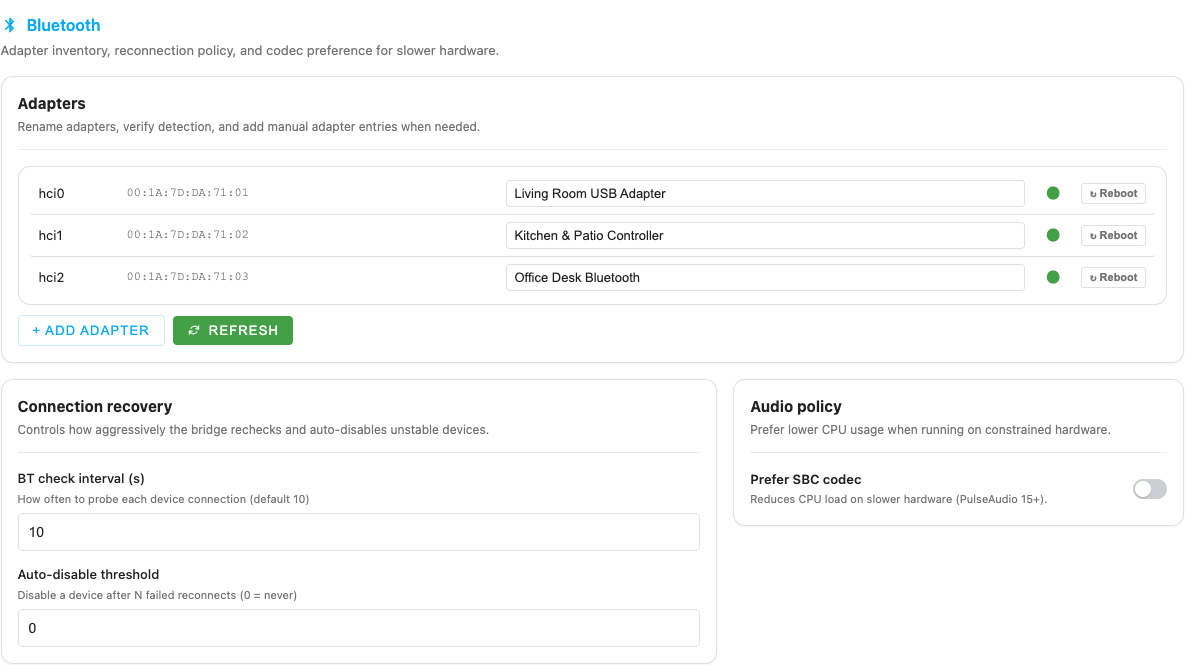
The Bluetooth tab is where adapter-level management lives:
- Friendly adapter names for clearer dashboard badges.
- Manual adapter entries for unusual environments.
- Refreshing detection without leaving the page.
- Connection recovery policy and codec preference.
Binding a speaker to an adapter
Section titled “Binding a speaker to an adapter”In the device row, set Adapter to either:
hci0,hci1, etc. for interface names.- The adapter MAC address when names are unstable or ambiguous.
Using the adapter MAC is especially helpful in some LXC environments where hciN naming can change after reboot.
Dashboard deep links
Section titled “Dashboard deep links”The dashboard now links back into configuration instead of sending you to a generic section:
- Device gear → highlights the matching row in Configuration → Devices.
- Adapter gear / adapter shortcut → highlights the matching row in Configuration → Bluetooth.
- Group badge → opens the corresponding Music Assistant group settings page in a new tab.
Grid and list views
Section titled “Grid and list views”The same fleet can be viewed in two layouts:
- Grid view for smaller setups.
- List view for larger fleets, with sortable columns and expandable rows.
The bridge automatically defaults to list view when more than 6 devices are visible, but your manual choice is remembered in the browser and reused on the next visit.
Re-pair, release, and reclaim
Section titled “Re-pair, release, and reclaim”Device actions exposed from the dashboard include:
| Action | Use it when |
|---|---|
| Reconnect | You want to force a Bluetooth reconnect without changing config |
| Re-pair | The host pairing/trust state is stale or broken |
| Release | You want to temporarily give the speaker back to another source |
| Reclaim | You want the bridge to take Bluetooth management back |
Release keeps the device in the config but stops the bridge from actively reconnecting it until you reclaim it.
Reconnect policy and auto-disable
Section titled “Reconnect policy and auto-disable”The Bluetooth tab controls two behaviors that affect device availability:
- BT check interval decides how often the bridge probes and retries Bluetooth recovery.
- Auto-disable threshold can persist a device as disabled after repeated failed reconnects.
If a speaker keeps flapping, the bridge may protect the rest of the group by auto-disabling it. Re-enable the device in Configuration → Devices after fixing the underlying Bluetooth problem.
Delay tuning and keepalive
Section titled “Delay tuning and keepalive”Use these per-device fields when tuning difficult speakers:
static_delay_ms— compensates for Bluetooth latency differences in grouped playback.keepalive_interval— periodically sends silence so some speakers do not fall asleep between tracks.keepalive_silence— legacy boolean from older addon configs; keepalive is now effectively controlled bykeepalive_interval > 0.preferred_format— can reduce resampling or CPU load depending on your MA output settings.